Media Library
The Content section is the centralized storage for all media files. It supports local files, web sources, streams, and widgets. It works in both cloud and on-premise SmartPlayer deployments.
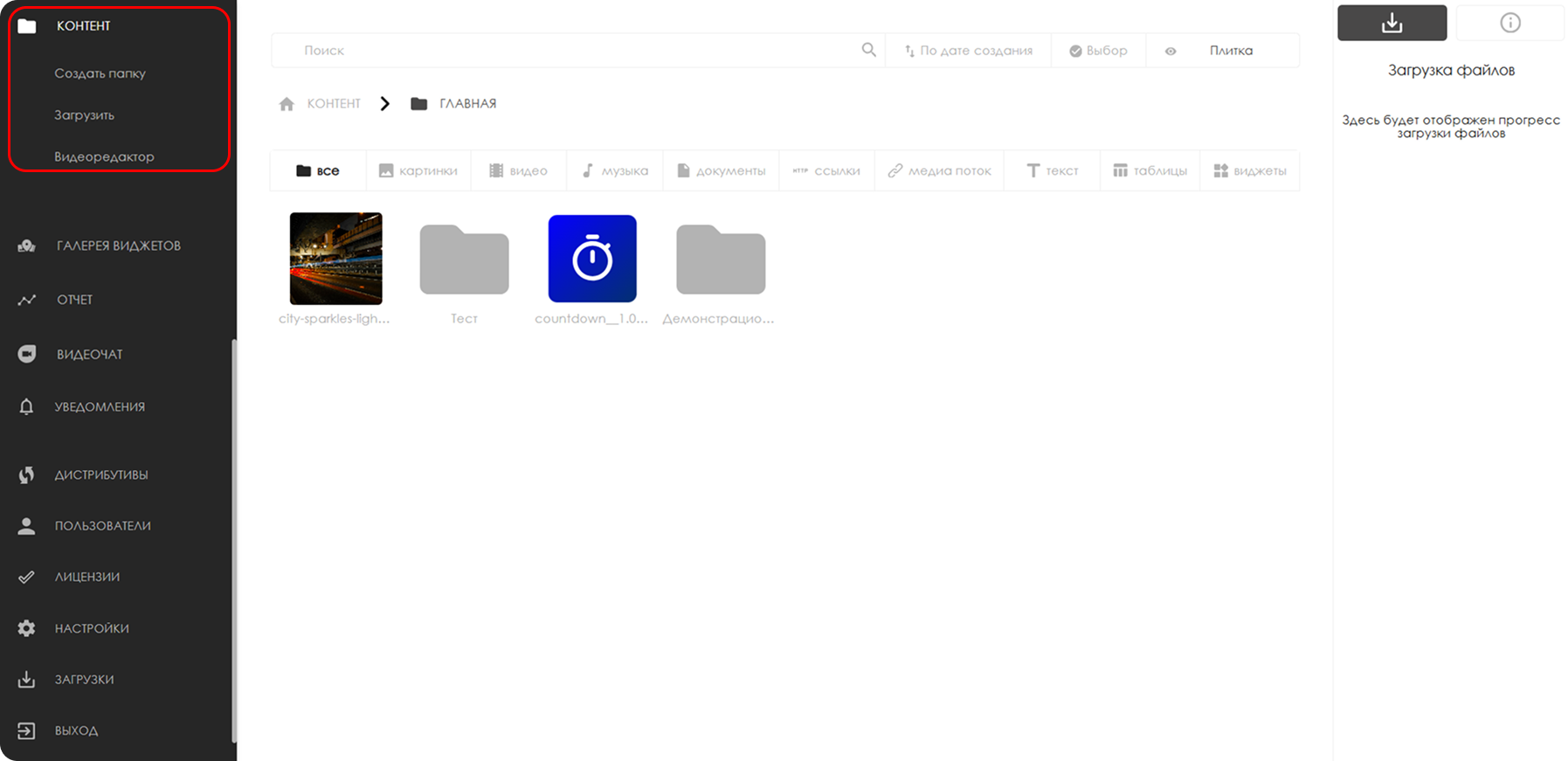
Content upload methods
File upload
Drag and drop in the browser, local file selection, Yandex Disk upload, or direct URL upload
Web sources
A page URL opened on the device as a live browser - useful for dashboards, schedules, and web applications
Media stream
RTSP, RTP, UDP, HLS, DASH, SmoothStream, HTTP - IP cameras, online broadcasts, and corporate streams
Widgets
Clock, weather, exchange rates, queue, RSS - widgets with dynamic data from external APIs
Content types
| Type | Formats / sources | Notes |
|---|---|---|
| Video | MP4, MOV, AVI, MKV, WEBM, OGG, OGV, MPEG | Subsequent MP4 conversion is available; playback depends on the device |
| Images | JPG, JPEG, PNG, GIF, SVG | Original format; conversion to video is confirmed for JPG/JPEG/PNG |
| Audio | MP3, WAV, AAC, M4A | AAC/M4A require the AAC codec |
| Documents | Pages are counted; upload does not convert PDF to images | |
| Web pages | HTTP, HTTPS URL | Live browser with updated content |
| Streams | RTSP, RTP, UDP, HLS, DASH, SmoothStream, HTTP | IP cameras and online streams |
| Ticker | Text + settings | Speed, color, font, direction |
| Widgets | Built-in + custom | Clock, weather, API-driven data |
See Formats and conversion for processing, ZIP application requirements and limitations. Upload support does not guarantee playback of the original file on every device.
Storage structure
We recommend organizing content into folders. The base categories in the media library are:

- All files — a single list of all uploaded content
- Images — static and animated images
- Video — MP4 and converted files
- Music — background audio tracks
- Documents — PDFs for playback
- Web sources — saved URLs
- Media stream — RTSP, HLS, UDP, and other stream addresses
- Text / Tables — tickers and text blocks
- Widgets — dynamic content
The maximum size of one file is 4 GB. Compatible video files are automatically converted to MP4. The limit can be increased on request for Enterprise accounts.
Add a web source
Open Add → Web source
In the media library, click Add → Web source.
Enter the page URL
Enter the full URL, including https://. Make sure the page opens without manual authentication, or configure auto-login.
Configure parameters
- Refresh interval — how often to reload the page (from 1 minute)
- Scale — use it if the page does not fit the device resolution
- Hide elements — CSS script for hiding unnecessary blocks, such as headers or ads
Add a media stream
Open Add → Media stream
Click Add → Media stream.
Enter the stream address
Supported examples:
rtsp://192.168.1.100/stream1— IP camerahttps://example.com/stream.m3u8— HLS streamudp://224.1.1.1:5000— UDP multicast
Video editor
SmartPlayer lets you edit uploaded video content directly in the system:
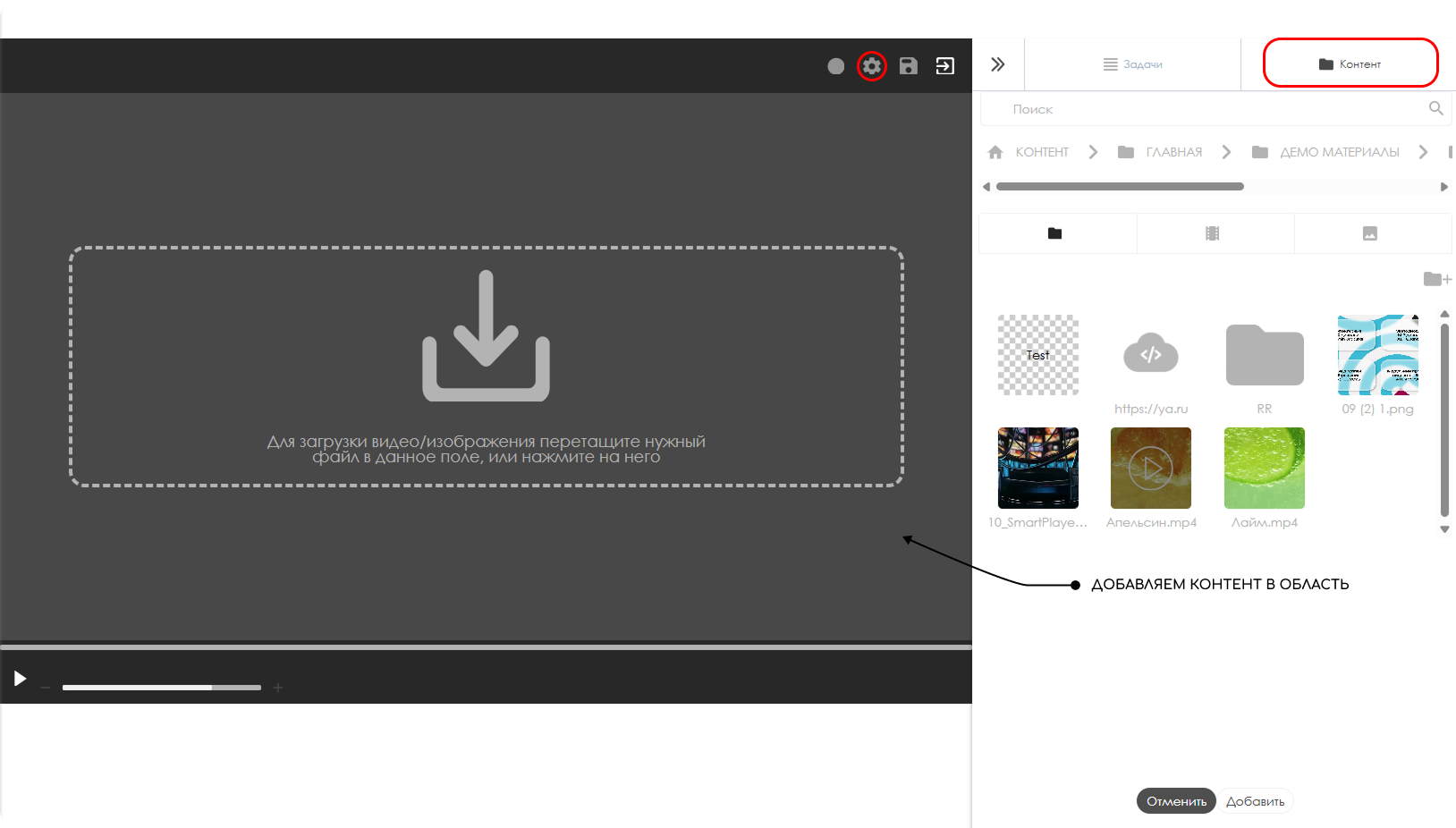
Available processing parameters:
| Parameter | What it does |
|---|---|
| Duration | Trim video to the required length |
| Resolution | Change size (Full HD, HD, SD) |
| Bitrate | Reduce bitrate to optimize file size |
| Frame rate | Change FPS |
| Rotation | 90°, 180°, 270° |
| Remove audio | Remove the audio track |
After processing, the system creates a new file version and keeps the original. The processed file can be saved back to the library.
Video conversion and processing are performed on the server. The time depends on file size and settings - from a few seconds to several minutes for large files.
What else you can add
Beyond regular files, the media library supports specialized content types:
Widgets
Clock, weather, currency, RSS, quality surveys, and project modules — see the dedicated «Widgets» page
IPTV channels
IP television over HLS, RTSP, DASH — separate «IPTV» page
Videoanalytics
Gender, age, and dwell-time detection — adaptive content by audience
Multi-zone broadcasts
A composition of multiple sources in a single broadcast with zones and layers
Subtitles, external folders and moderation
- Video subtitles: upload an SRT file, style the text, process and save a new video.
- Content from S3: populate a SmartFolder from a bucket using a folder rule.
- Content moderation: configure roles and approve files before use in a broadcast.
Sources: Создание субтитров для видеороликов/ru, Интеграция с бакетом через S3 в рамках SmartPlayer/ru, Модерация контента/ru.