Video subtitles
Upload an SRT file for an existing video, adjust its appearance and save the processed video to the media library.
Preparation
Upload the video to the media library and prepare an SRT subtitle file. Each cue must match the corresponding speech interval; the text disappears when that interval ends.
Add subtitles
Open the video editor
Select a video in Content and choose Video editor in the right panel. You can also open it from the Content submenu.
Upload the SRT file
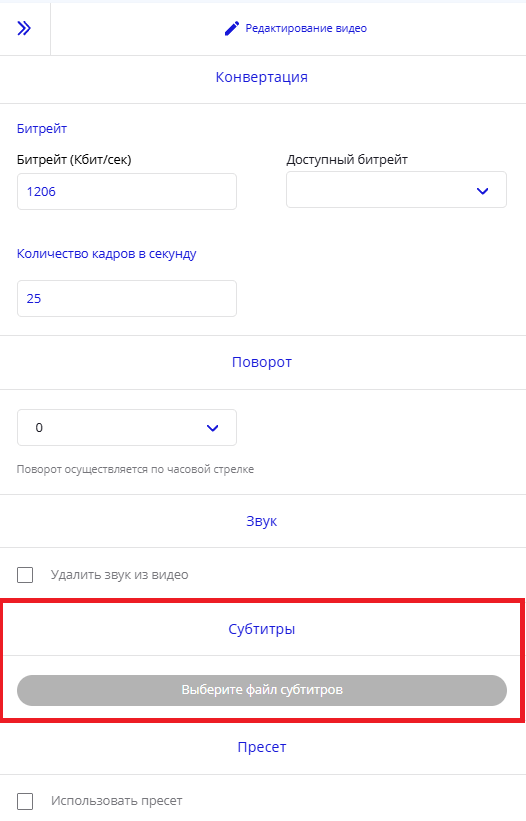
Click the video in the preview, scroll down the settings panel to Subtitles and upload the SRT file.
Adjust the appearance
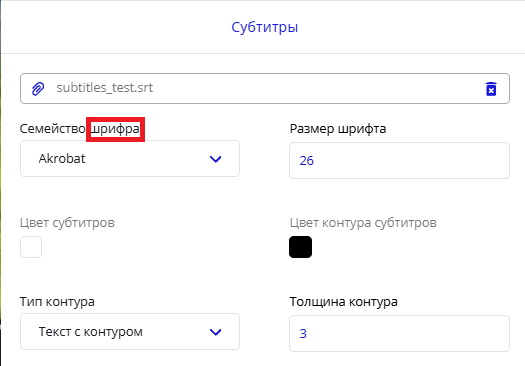
Choose the font family, size, text and outline colours. The available styles are outlined text and text on a background; set the outline thickness as a number.
Process the video
Click Process and wait for completion. Processing time depends on the video duration and amount of text.
Save the result
Click Save on the toolbar above the preview, on the right (floppy-disk icon), enter a name and choose a folder. The new video appears in Content and can be added to a broadcast.
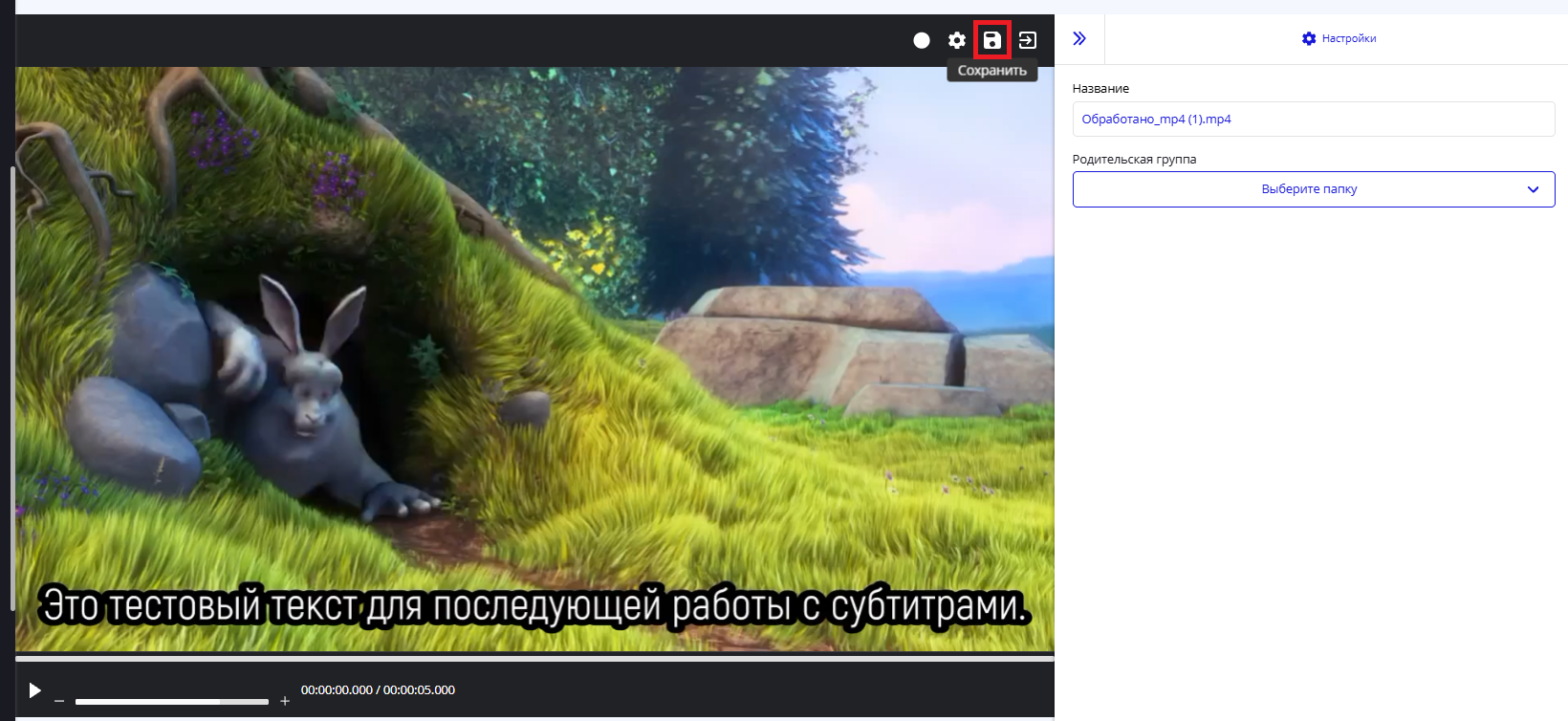
Processing creates a new video. Check the beginning, middle and end: each cue should match the speech, disappear at the right time and remain readable on the target screen.
Sources
SmartPlayer Wiki — Создание субтитров для видеороликов/ru