Announcements
The Announcements section adds standalone messages to a live broadcast without rebuilding the main program. An announcement temporarily shows an image or video, after which the device returns to normal playback.
How it works
No broadcast rebuild
Add a temporary insert without touching the main scheduling logic
Images and video
In the standard scenario announcements are built from an image or a video
Validity dates
An announcement is bounded by a start date, end date, and the chosen time mode
Device assignment
Devices or device groups are picked in a dedicated step
Prerequisites
Before creating an announcement, the device should already have:
- a base broadcast;
- a valid schedule;
- the announcement content: an image or video;
- the list of devices or groups where the announcement should appear.
Announcements require a schedule with a single zone and a single page. If the device has no schedule, no content is selected, or conflicts remain in the summary, the system won't let you save the announcement.
The SmartPlayer wiki describes an extended scenario: an announcement can target a specific zone of a multi-zone broadcast instead of the whole screen. Zone identifiers are configured in the broadcast beforehand, and the By zones playback type is selected when creating the announcement.
Creating an announcement
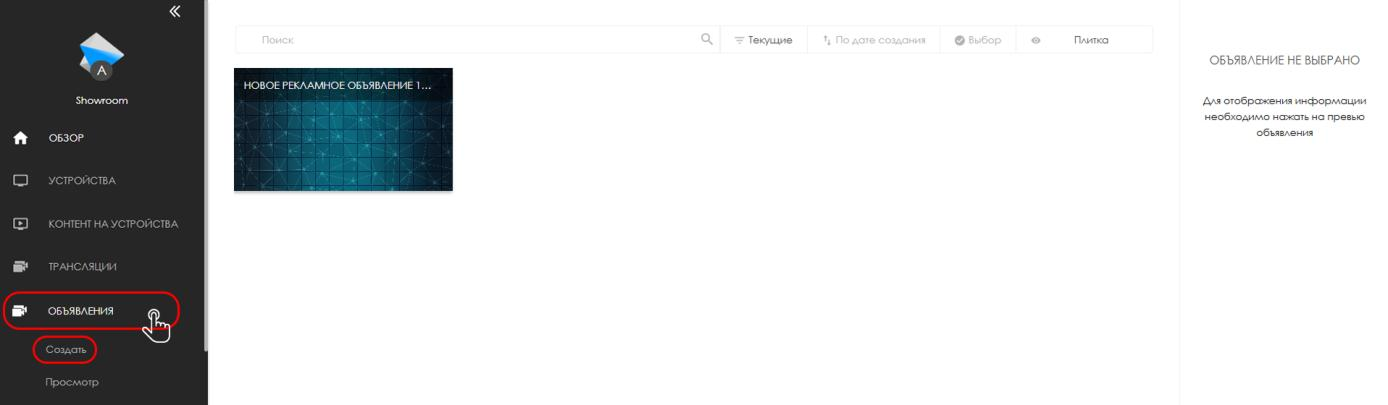
Open the Announcements section
In the dashboard's left menu, go to Announcements. The list shows what's already been created; press Create for a new one.
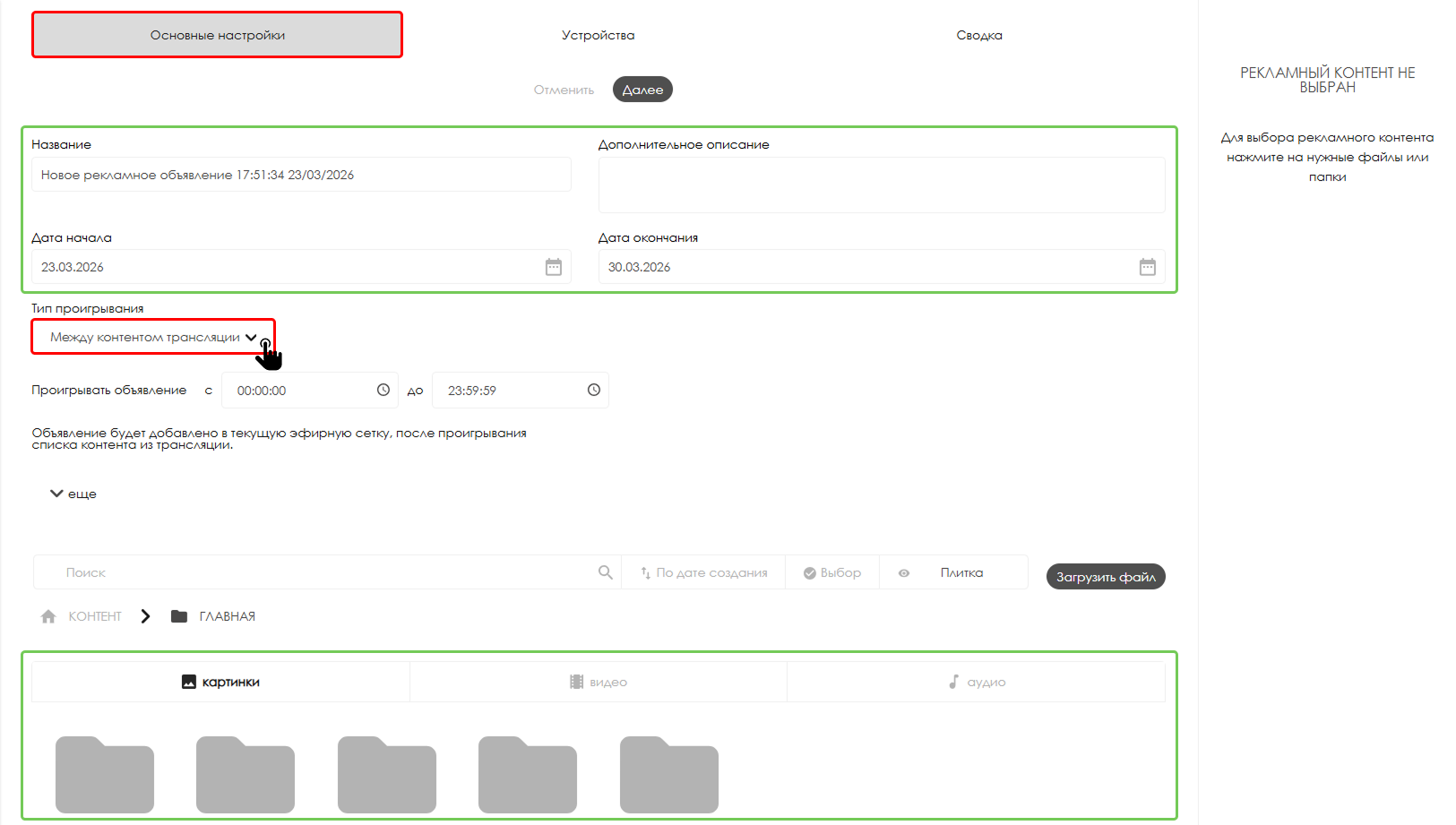
Fill in the main settings
The first step sets the name, an optional description, start date, end date, time format, and the playback option. For production scenarios, local time is recommended so the launch matches the real time at the venue.
Pick the playback type
The guide describes two base modes:
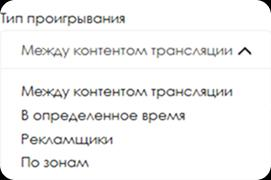
Between broadcast content
The announcement starts after the current content cycle on air finishes.
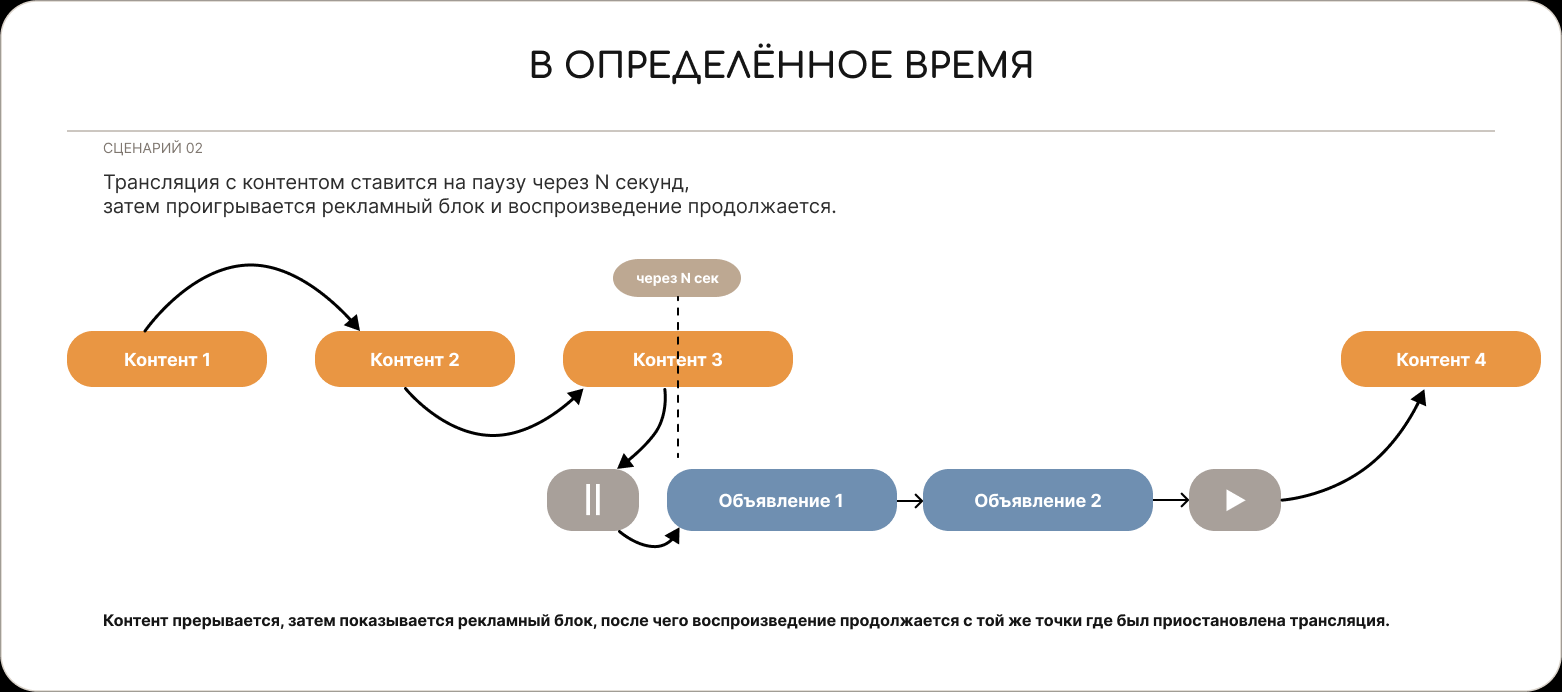
At a set time
The announcement starts at an exact moment. The current broadcast pauses and, after the announcement, resumes from where it stopped.
The other launch options depend on which project modules are enabled.
Announcements in multi-zone broadcasts
The By zones scenario is for announcements that should appear in just one screen area, or a chosen set of zones, without covering the whole multi-zone broadcast.
Prepare the base broadcast first:
- create the zones you need in the broadcast editor;
- give every target zone an announcement zone identifier;
- assign the broadcast to the device and add a schedule;
- confirm the device supports the scenario on its platform.
As of the wiki in June 2026, multi-zone announcements work on Android, while Windows support is still being finished. Verify the scenario on the specific client build before a production launch.
When creating the announcement, choose the By zones playback type, then pick the device and one or more zone identifiers. On the final step check the summary: any reported conflicts must be fixed before saving.
For the zone scenario, the wiki lists images, video, and audio. Audio plays with no visual — the screen shows a black background. The wiki also doesn't mention a preview for by-zone announcements, so test on a staging device before a mass rollout.
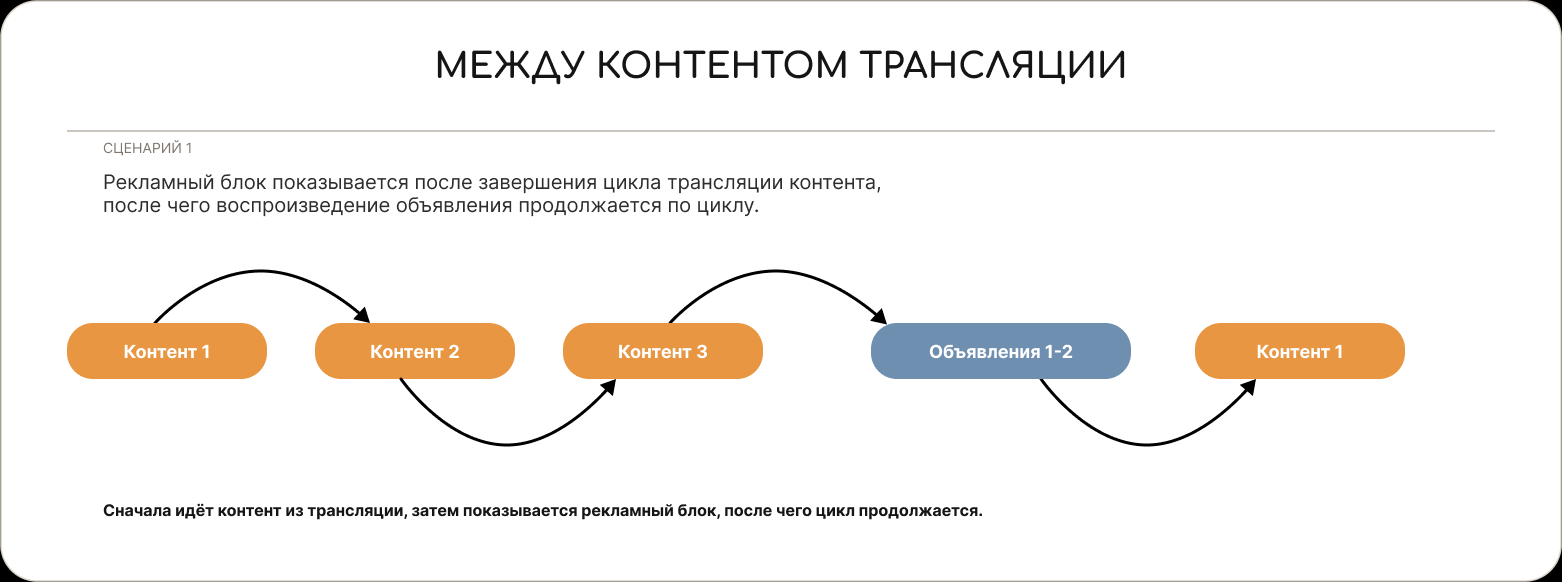
Between broadcast content
The announcement shows after the current content cycle ends, then the program continues looping
At a set time
The broadcast pauses, the ad block plays, then playback resumes from the same point
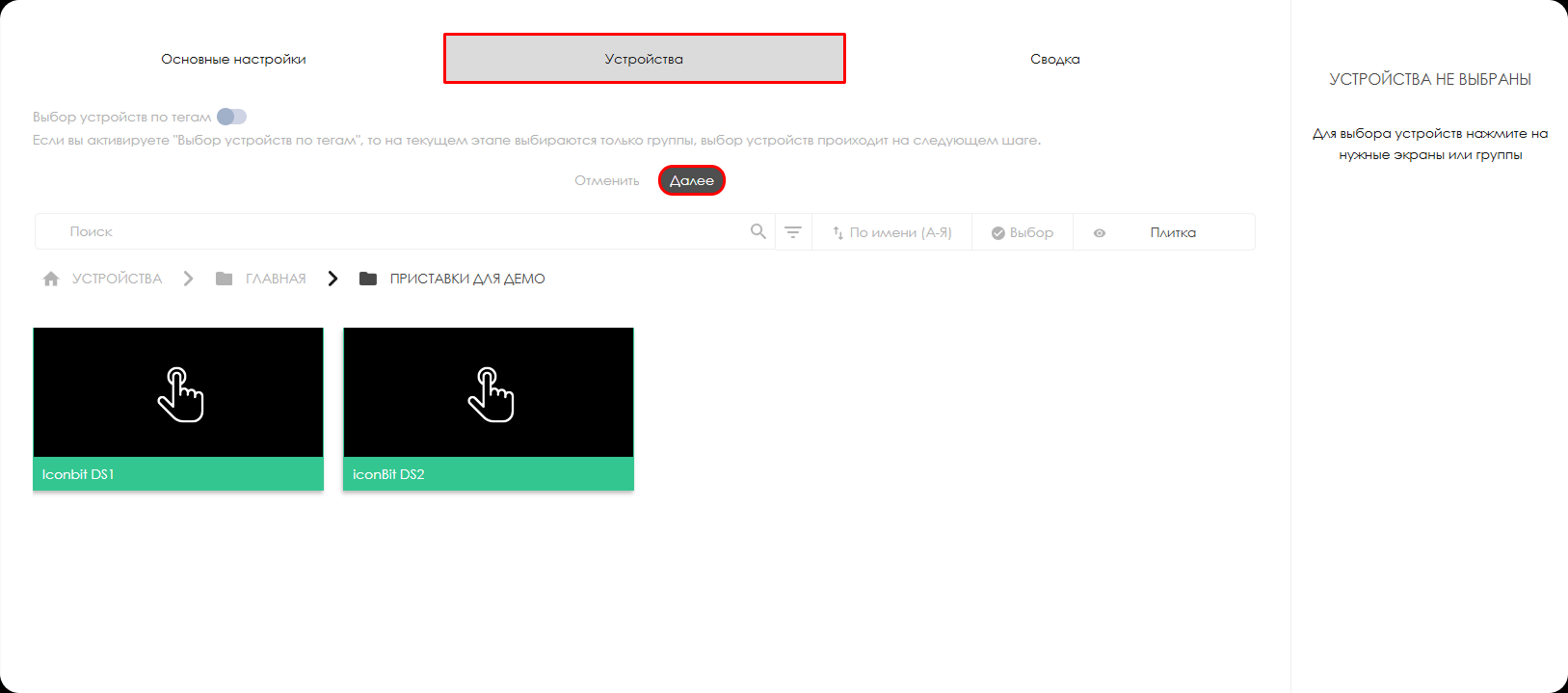
Assign devices or groups
Pick the screens where the announcement should appear. Make sure the selected devices already carry a base broadcast and a schedule.
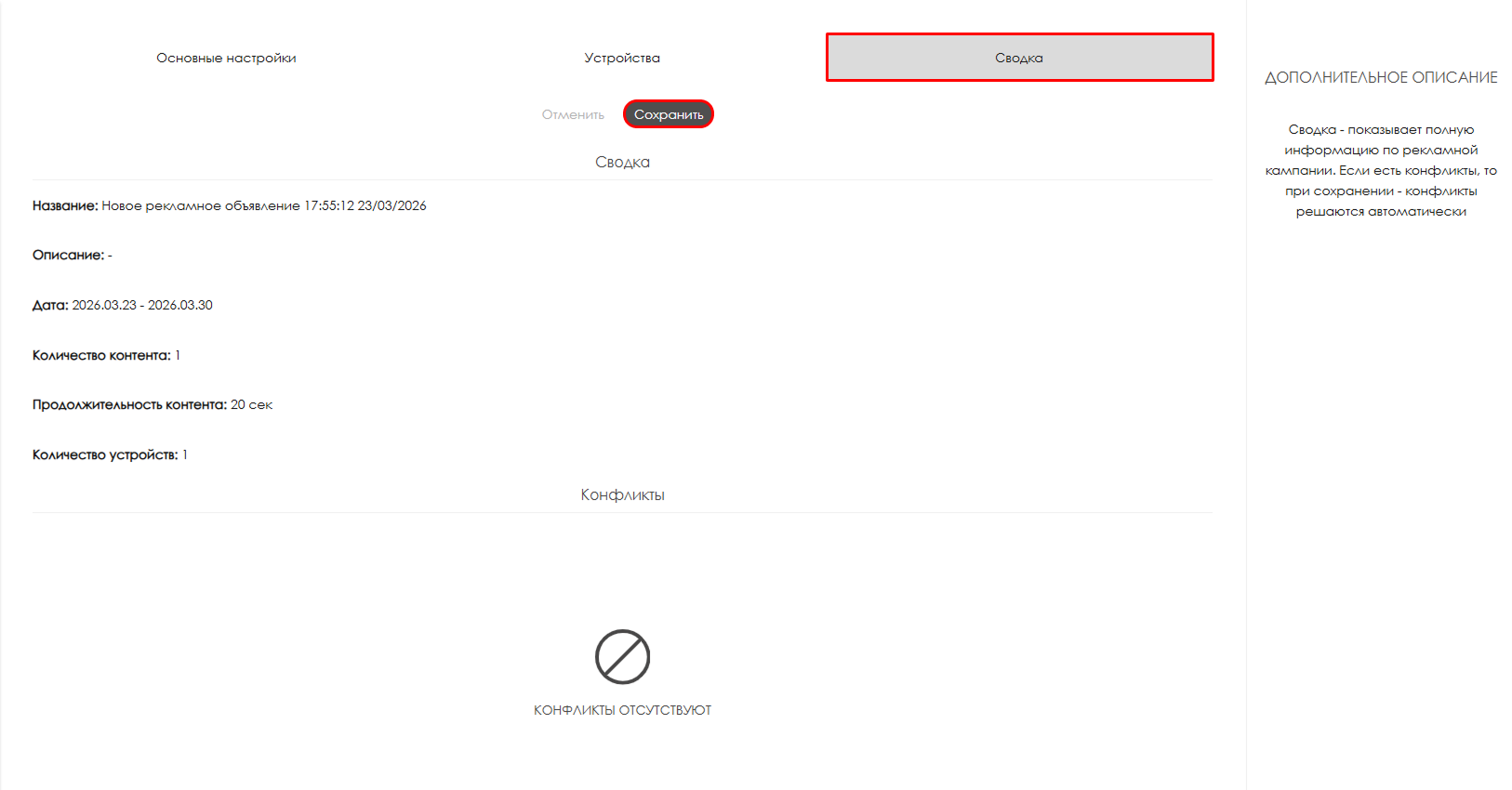
Review the final summary
Before saving, check the date range, content duration, device count, and conflict details. If the summary reports a conflict, resolve it before publishing.
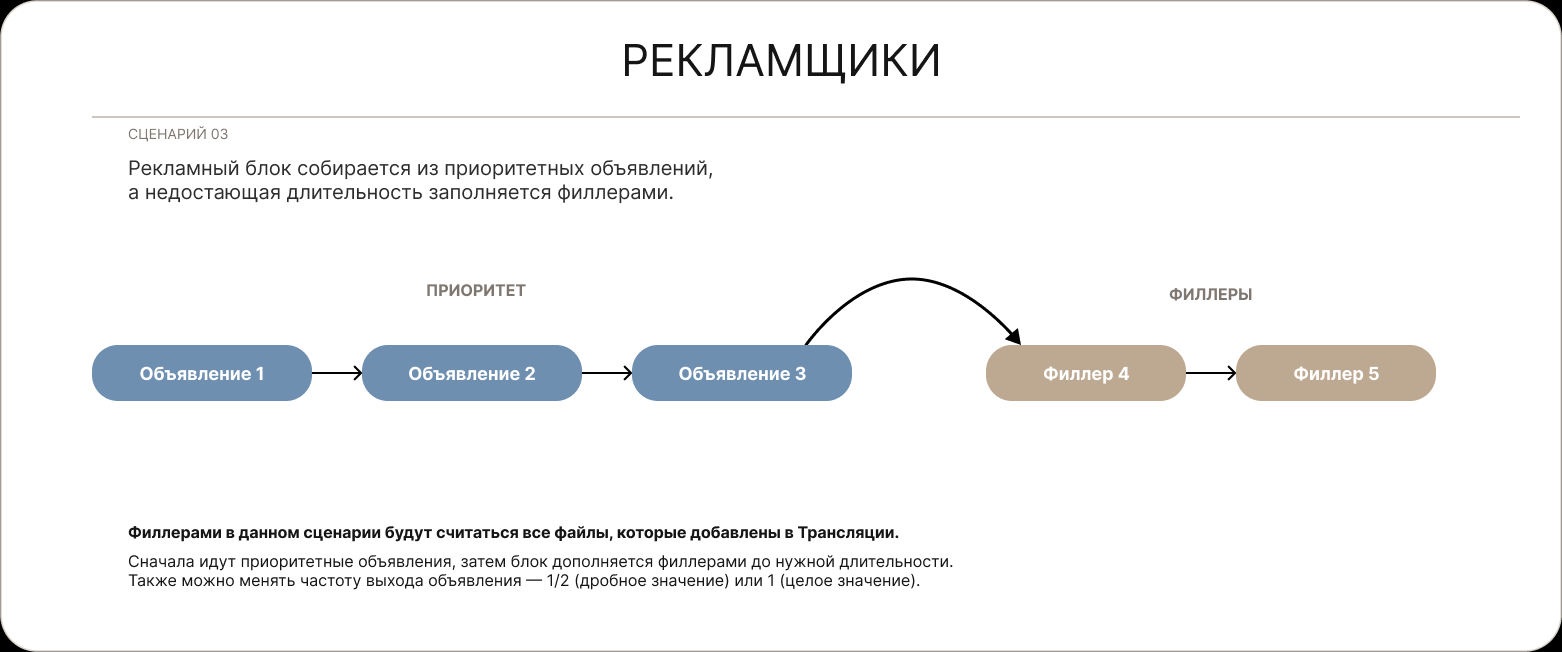
Priority announcements and fillers
In some projects the ad block is assembled from priority announcements, with fillers topping up the remaining duration. This scenario depends on the enabled modules and project logic, so align it with the SmartPlayer team before rolling it out.
Announcements suit temporary inserts into a working program. Emergency alerts are usually a separate, higher-priority broadcast that is guaranteed to override the normal content on the chosen screens.
Audio announcements on Android
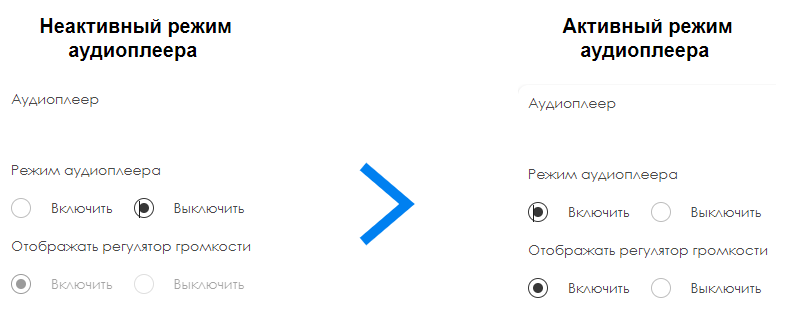
Open Audio player in device settings, enable Audio player mode and optionally Show volume control. Save changes, upload an audio file to Content and create an announcement using it. During playback, the device audio player sidebar provides a volume control.
Announcement reports
Export playback results through Reports → Announcements. See Reports for period and device selection and XLSX download.
Sources: Взаимодействие с аудиоплеером на Android OS/ru, Формирование отчета по объявлениям/ru.
Downloading an announcement archive
The server v3.3.15 release notes document announcement downloads as ZIP archives, similarly to broadcasts. This is an announcement package; playback reports are exported separately through Reports. Check that the download command is available for your installed version and announcement access.
Source: CMS and server release notes.