Quick send to devices
Quick send helps you assemble a broadcast, pick devices, and schedule playback fast — without hopping between several dashboard sections. Use this scenario for a test launch, an urgent publication, or a simple one-off content push.
Before you start
- The SmartPlayer client app is installed on the device (the
Distributionssection). - The device is added to the dashboard and visible in the list.
- The media library holds at least one file to send.
1
Create
Assemble the broadcast and the Timeline
2
Assign
Pick the devices
3
Schedule
Date, repeat, priority
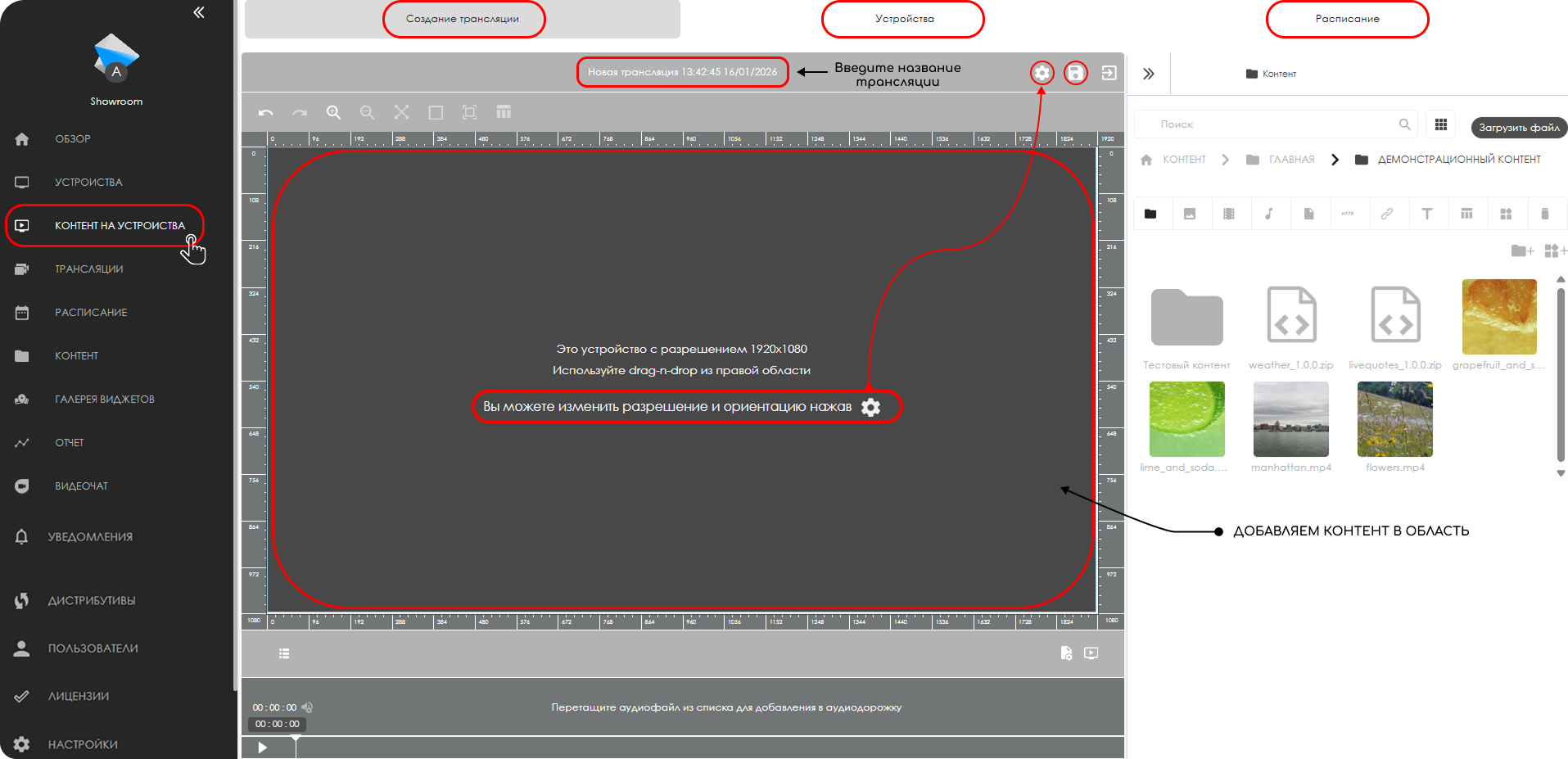
Step-by-step instructions
1
Create a broadcast
~2 minPreparation
- Open
Quick sendin the left menu. - Press ⚙ — set the resolution and orientation (1920×1080 by default).
- Name the broadcast.
Add content
- Drag files from the right panel (Drag & Drop) or use
Add → Files. - In the Timeline, reorder, delete, or replace files.
- Press Play in the Timeline for a preview.
- For a static file, set the duration:
Content settings → Duration.
Video
Changing the duration of video files isn't possible — the file itself defines it.
- Save — you'll move on to step 2.
2
Select devices
~30 sec- Tick the devices or groups in the list.
- Check the status — Online, Offline, Error.
- Press Next.
Tip
For mass playback, use device groups — one click assigns a whole department, branch, or zone.
3
Schedule
~1 min- Set the playback start date and time.
- Pick the repeat: once, daily, forever.
- Set the priority — new broadcasts default to low.
- Save.
Done
The content is on its way to the devices. To verify delivery: Devices → card → Downloads.
Supported formats
File uploads
Covers 95% of tasks without manual conversion
- Video: MP4
- Images: JPG, JPEG, PNG, GIF
- Audio: MP3
- Documents: PDF
Limits
The technical ceilings of one upload
- File size — up to 4 GB
- Auto-conversion to MP4
- The limit can be raised on request
Next
IPTV