Widgets
Widgets are dynamic elements that pull data from external sources and update directly on screen. They cover scenarios where a static image won't do — clocks, weather, exchange rates, news, queues, and customer satisfaction surveys.
Widget categories
SmartPlayer widgets split into three groups: standard (included in every subscription), paid (a separate add-on), and project widgets (require custom integration for a specific scenario).
Standard
13 ready-made widgets in every subscription — weather, currency, clock, RSS, quality rating, memorable dates
Paid
Flight board and electronic queue — available as an additional module
Project
Dynamic pricing, photo booth, navigation, catalog, wine sommelier — require POS / API / maps integration tailored to the project
Where to find them
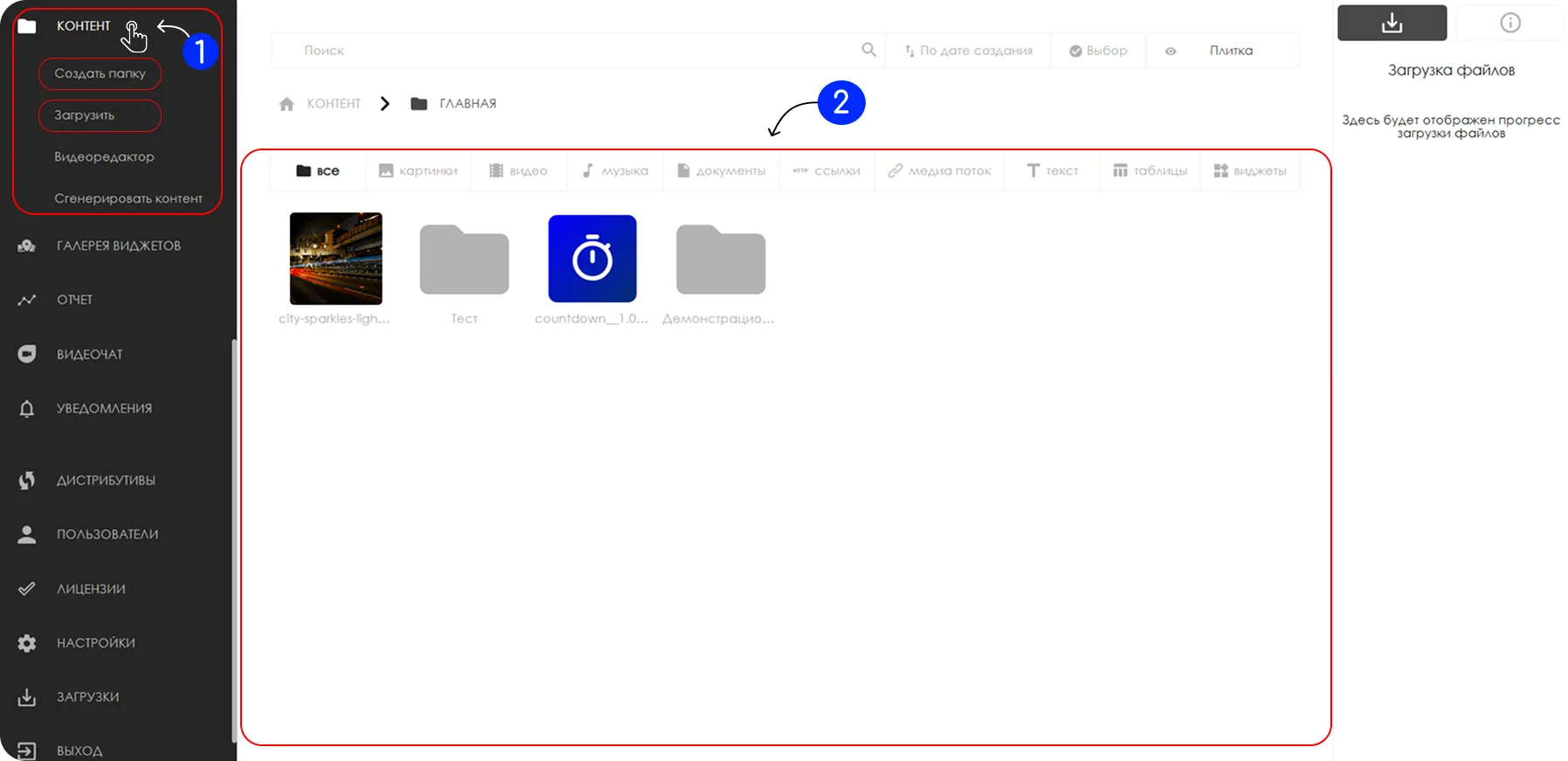
Content → double-click a widget → configuration icon in the top-right corner
Standard widgets
| Widget | What it shows |
|---|---|
| Weather | Temperature and conditions from an external source |
| Traffic | Road traffic and congestion data |
| Currency rates | Live exchange rates for selected currencies |
| Time and Date | Current date and time |
| Clock | Analog or digital clock |
| Clock with two display modes | Clock with switchable display variants |
| Countdown | Timer counting down to a specified event |
| Oil prices | Crude oil quotes |
| RSS | News ticker built from an RSS feed |
| Quality Rating | Basic customer survey form |
| Quality Rating 2.0 | Improved survey version |
| Authorization widget | User authorization element |
| Memorable dates | Calendar of significant events |
Paid widgets
Flight board
Arrival and departure schedule — for airports, business lounges, office signage
Electronic queue
Queue management with ticket number and counter display
Project widgets
Available after consultation with the SmartPlayer team — each requires custom configuration tied to a specific data source.
| Widget | What it requires |
|---|---|
| Dynamic pricing | Adapting a file format or integrating with the POS system API |
| Photo booth | A widget for photographing visitors with on-screen printing or sending |
| Navigation | Uploading maps and marking up routes for your venue |
| Catalog | Catalog display from a data source |
| Wine sommelier | Integration for recommending wines based on customer selection |
Adding a widget to a broadcast
Open the Content section
Go to Content and find the widget you need in the list of available items.
Double-click the widget
Double-clicking opens the widget card. If the icon you need isn't there, contact technical support — it may be a paid or project module.
Open the settings
Click the configuration icon in the top-right corner of the widget card. This is where you set parameters — the city for weather, currencies for rates, the RSS source.
Place the widget in a broadcast zone
Inside the broadcast editor the widget behaves like a regular media element — you can place it in any zone and combine it with other content (see Multi-layer broadcasts).
Most standard widgets work out of the box — data is pulled automatically. For project widgets (dynamic pricing, catalog), the data source must be configured in advance with the integrator.
Refresh rate, the maximum number of widgets per device, and internet connection requirements depend on the specific widget and are not documented publicly. Confirm with technical support for production scenarios.
PDF selection and project widget updates
The CMS v2.160.5 release notes document selecting individual PDF files for upload into widgets. Choose the required documents in the available file picker; parameters depend on the specific widget.
The notes also describe colour settings for floor buttons and the keyboard in the Navigation widget. Dynamic prices and rkeeper integration require the appropriate widget and a configured project data source. Client support alone does not enable the integration.
Tizen v1.49.0 separately documents video files within interactive widget packages and preloading content for dynamic-price menu boards. Check the widget package and price data source for your project. Source: OS Tizen v.1.
Sources: CMS and server release notes, OS Android.