Multi-layer broadcast
A multi-layer broadcast (content overlay) places several elements on top of the main content — a ticker, a logo, a banner, a clock or weather widget.
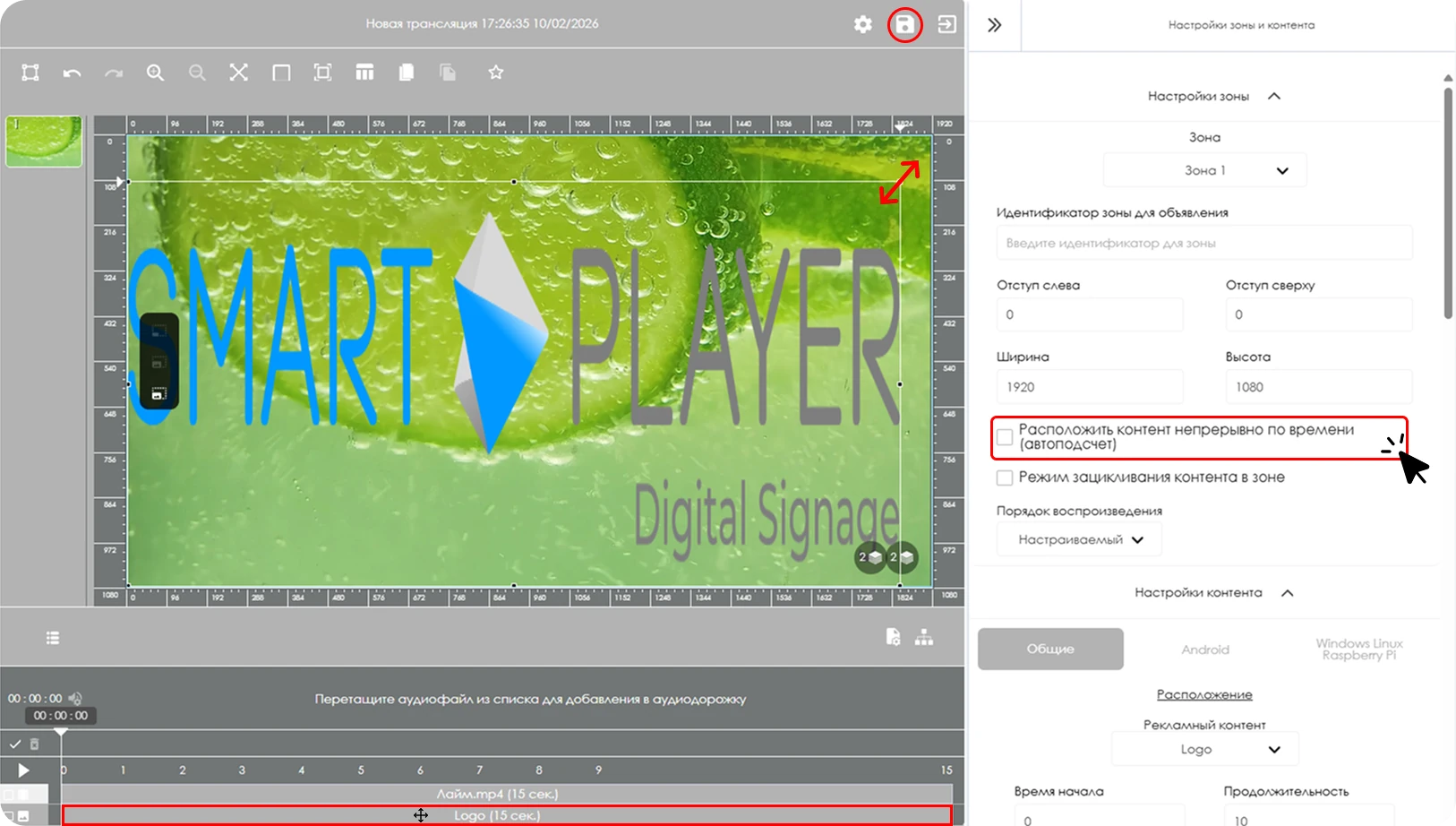
How overlaying works
In the broadcast editor every element lives in its own zone. Zones can overlap — upper layers render on top of lower ones. Stacking is controlled by the z-index setting: the higher the value, the higher the zone sits above the others.
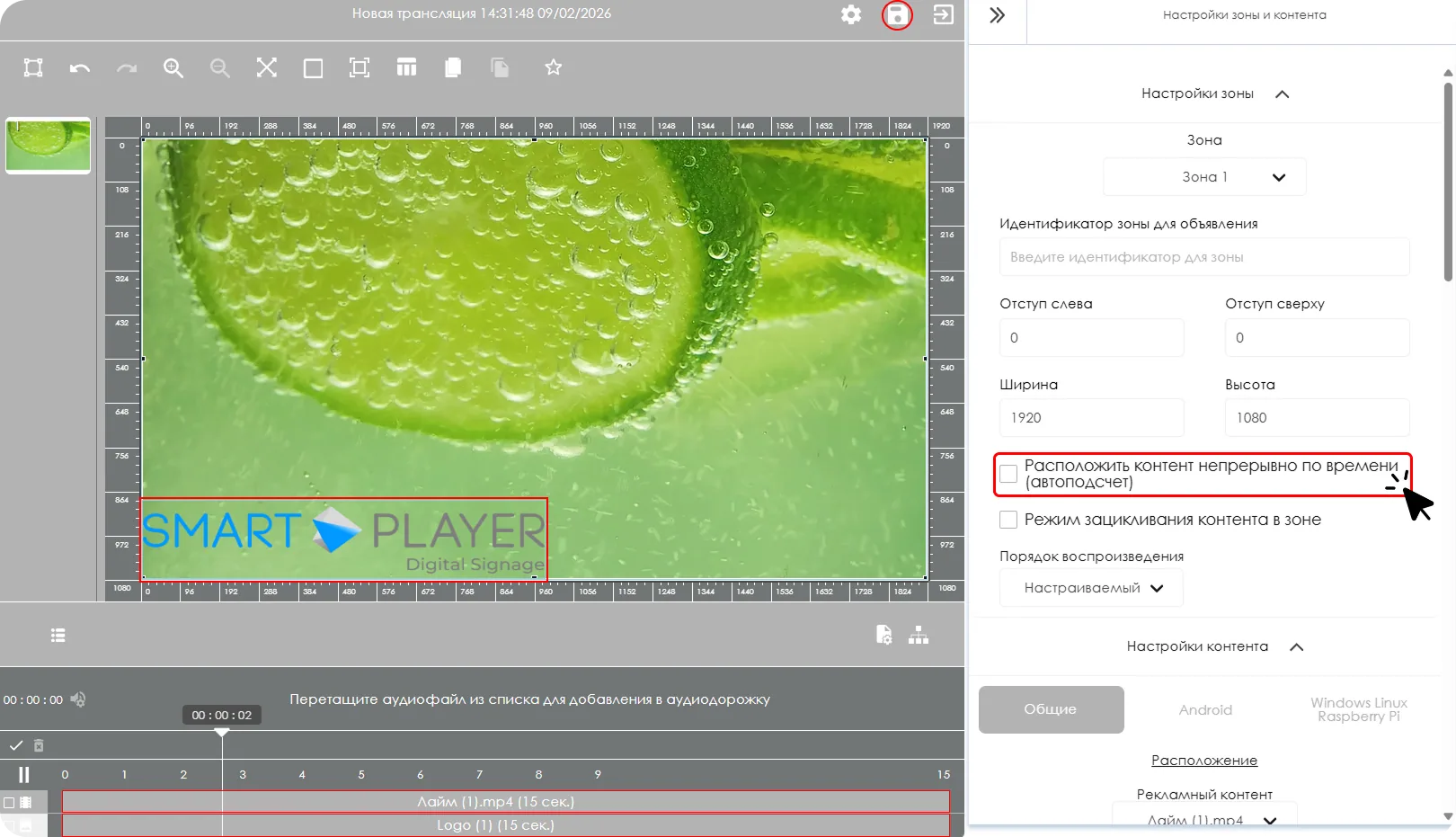
Typical use cases
Ticker
News, promos, and notices over the main video — text, color, speed, and font are configurable
Logo / watermark
Permanent branding in a screen corner, running continuously over any content
Data widgets
Clock, weather, exchange rates, a queue counter — widgets pull data from external sources
Urgent messages
A higher-priority banner over the current broadcast — for important announcements
Creating a ticker
Open the broadcast editor
Go to Broadcasts → Create or open an existing broadcast.
Add a zone for the ticker
Create a new zone along the bottom of the screen (60–100 px tall). Set:
- Width: 100% of the screen
- Height: 60–100 px
- Position: bottom
- Z-index: above the main zone
Add the “Ticker” content type
In the media library pick Add → Ticker. Enter the announcement text.
Available settings:
- Scroll speed — pixels per second
- Direction — left-to-right or right-to-left
- Font and size
- Text and background color
- Background opacity
Enable looping
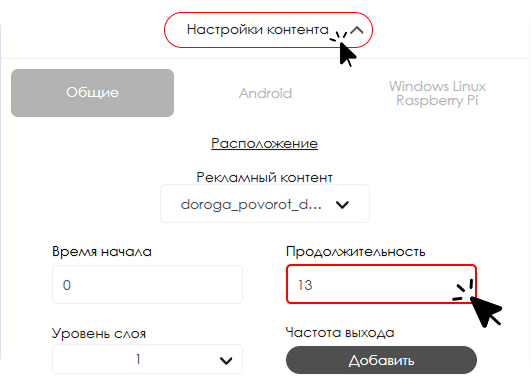
In the zone's Timeline, turn looping on — the ticker will run continuously over the main content.
Adding a logo (a permanent overlay)
Create a zone for the logo
Add a small zone (e.g. 200×80 px) in a screen corner. Give it a high z-index.
Add the logo image
Drag a PNG logo (with a transparent background) into the zone.
Set duration and looping
In the Timeline, set the logo's display duration — or enable looping so the logo shows permanently.
Layer settings
| Setting | Description |
|---|---|
| Z-index | Stacking order: higher means on top of other zones |
| Opacity | A semi-transparent background for overlays that don't hide the main content |
| Animation | The layer's entrance and exit effect |
| Looping | For permanent overlays (logo, ticker) |
Zones with a higher z-index display above the lower ones. For permanent overlays (logo, ticker), use looping plus a high z-index.
Many simultaneous layers can slow weaker devices. Keep it to 3–4 layers at a time.