Broadcasts overview
A broadcast is the media program SmartPlayer plays on your screens. It holds zones with content, timing settings, and playback rules.
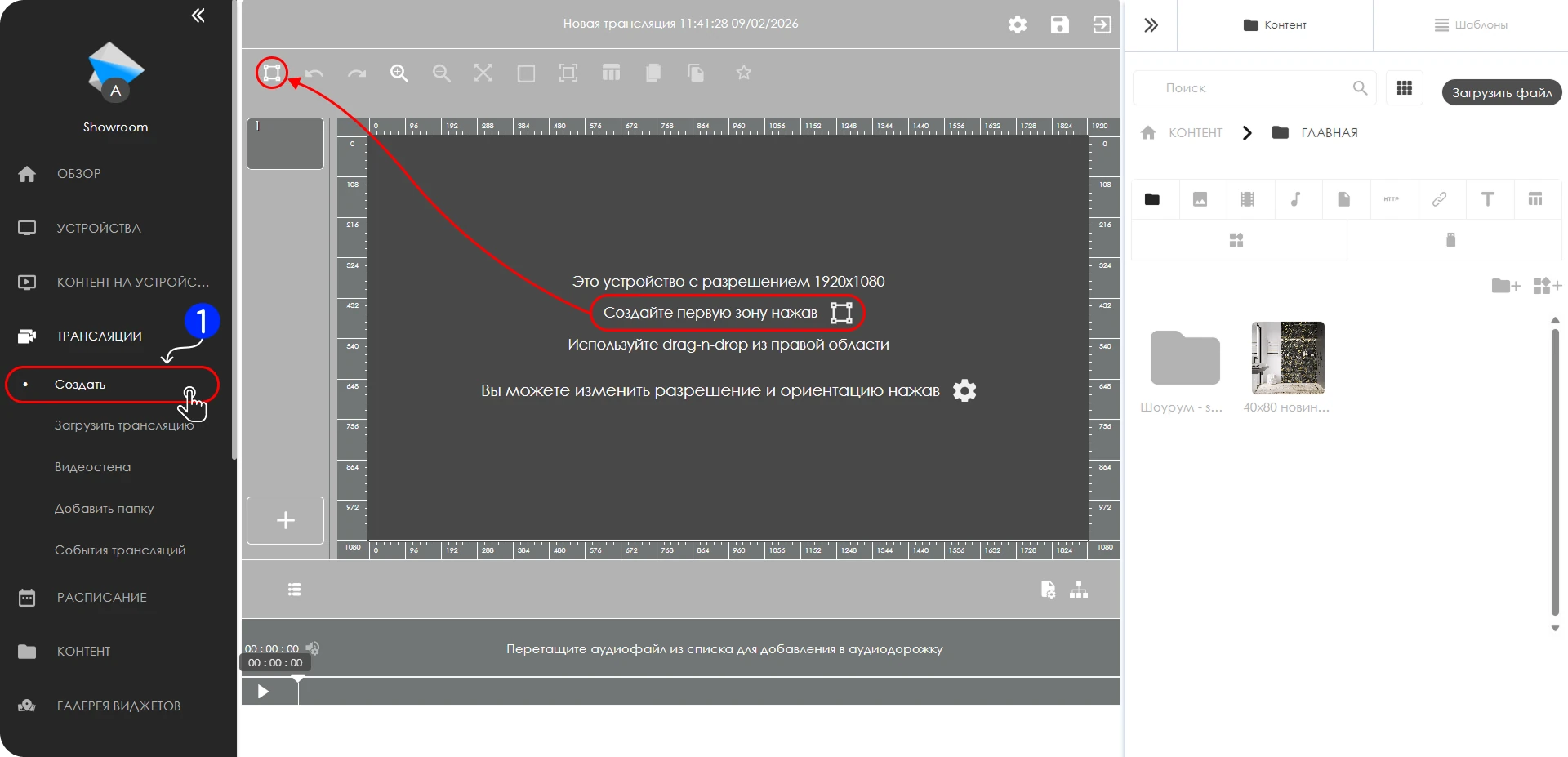
Broadcast types
Single-zone
One zone with a content playlist fills the whole screen. The simplest and most common type
Multi-zone
The screen is split into independent zones with different content — video, info, and banners at the same time
Multi-layer
Zones overlap — a logo, ticker, or widget sits on top of the main video
Video wall
Synchronized output of a single image across several physical screens arranged in a matrix
Broadcast lifecycle
Create → Edit → Save → Assign → Schedule → Playback
- Create — open the editor, set a name and resolution
- Edit — set up zones, add content, configure the Timeline
- Save — the broadcast is stored as a draft
- Assign — pick devices or groups
- Schedule — set the time frame and priority
- Playback — SmartPlayer delivers and starts the content automatically
Broadcast statuses
| Status | Description |
|---|---|
| Draft | The broadcast exists but isn't assigned to any device |
| Active | Assigned to devices and playing on schedule |
| Archived | Unpublished; the data is kept and can be restored |
Managing broadcasts
In Broadcasts, actions are available from the context menu (⋯):
Duplicate
Create a copy with the same zones and content — handy for similar programs
Edit
Open the editor to change zones, content, or Timeline settings
Archive
Move to the archive instead of deleting — the data is kept and the broadcast can be restored
Delete
Removes the broadcast permanently. Schedules pointing at it are reset
Keeping broadcasts organized
Use search and filters to manage a large number of programs:
- Search by broadcast name
- Status filter — drafts, active, archived
- Creation-date filter — newest / oldest
- Tags — to group by type, campaign, or location
For your first run, use Quick send — it assigns content to a device in 3 steps, without building a full broadcast by hand.