Users and roles
This section controls access to the system: who can see and change data, and which sections and devices each user manages. SmartPlayer supports a flexible model — standard roles plus custom ones with any set of permissions.
Standard roles (example patterns)
Super administrator
Account owner
Full access to every feature and all data. The only role that sees all groups and manages API keys and security settings.
Administrator
Network management
Manages users, devices, content, and schedules. Has access to the audit log and reports.
Content manager
Working with content
Uploads files to the media library, creates and edits broadcasts. Doesn't manage users or account settings.
Operator
Monitoring and operations
Views devices and schedules, performs basic operations. Sees only their own group's devices and can't change content.
Guest
Read-only
Viewing with no ability to change anything. Suits auditors, new hires on probation, external consultants.
Creating a custom role
In Users → Roles you can create custom roles with a precise set of permissions across each of the 15+ system sections.
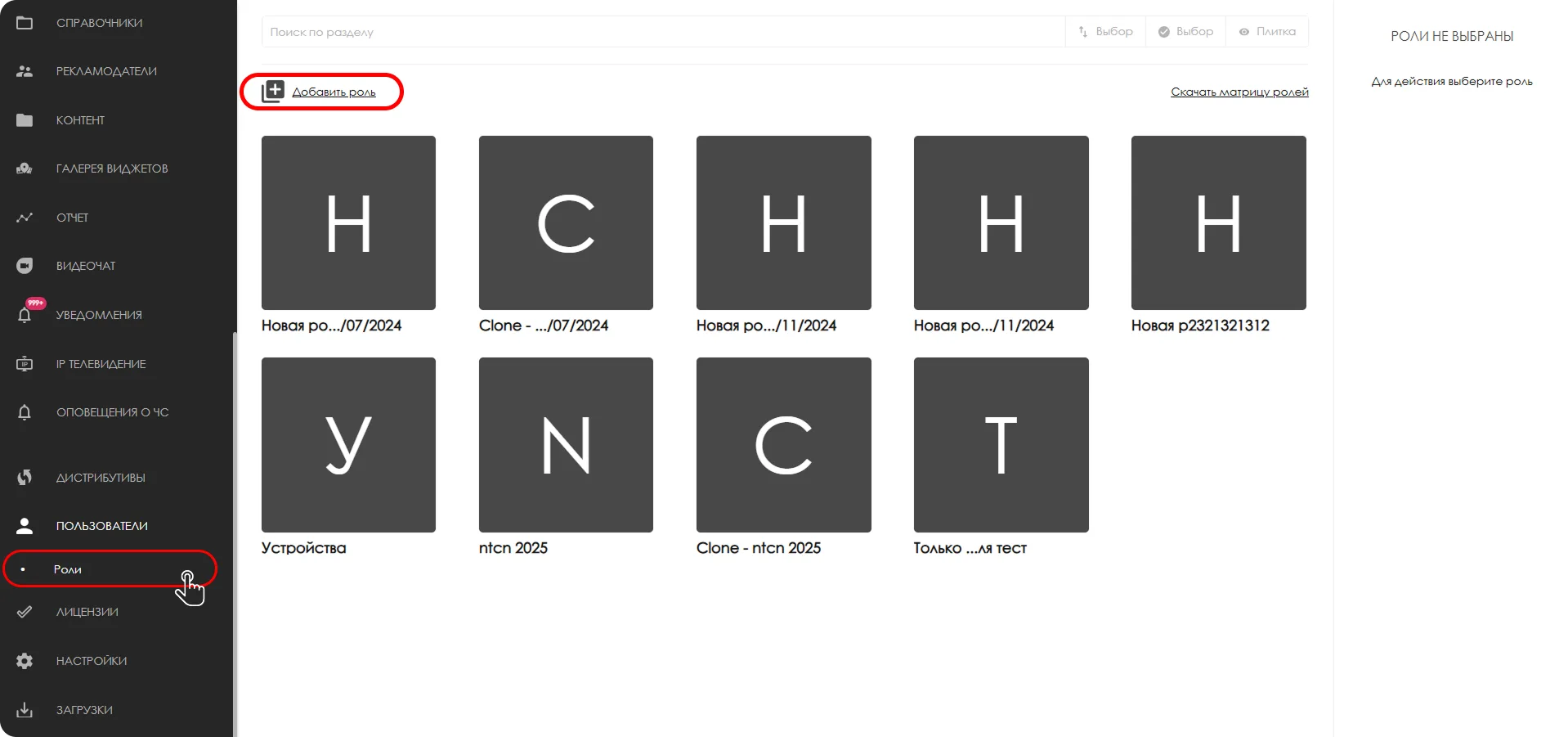
Open “Add role”
In Users → Roles, press Add role. A builder opens with permission sections.
Configure permissions per section
On the left is a list of 15+ sections: Overview, Devices, Gas-station pylons, Announcements, Broadcasts, Data catalogs (the widget data module — not to be confused with the documentation's Glossary), Schedule, Lesson schedule, Content, Roles, Users, Reports, Settings, Emergency alerts. Each gets the base Read permission plus the detailed operations (Create, Edit, Delete).
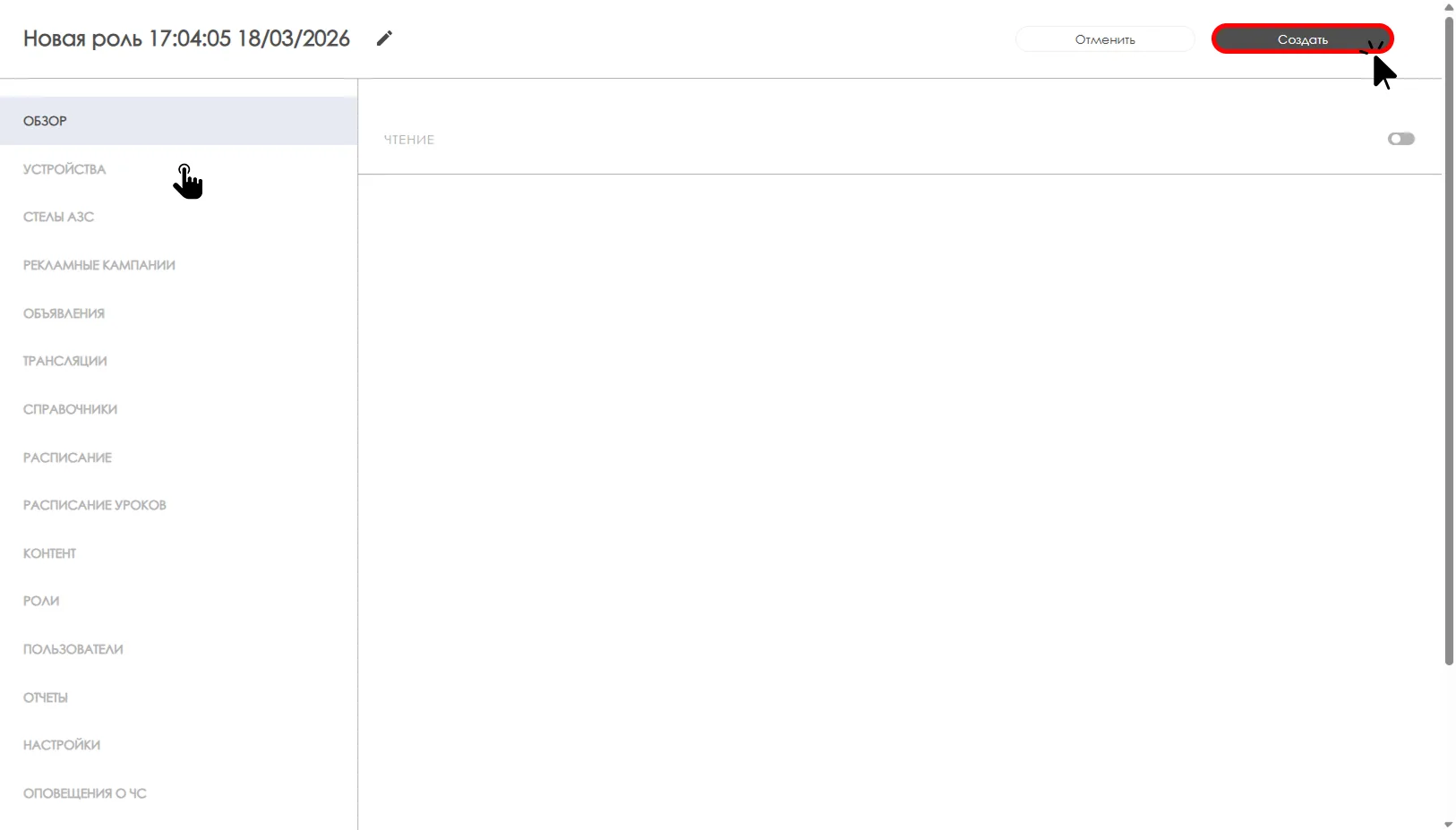
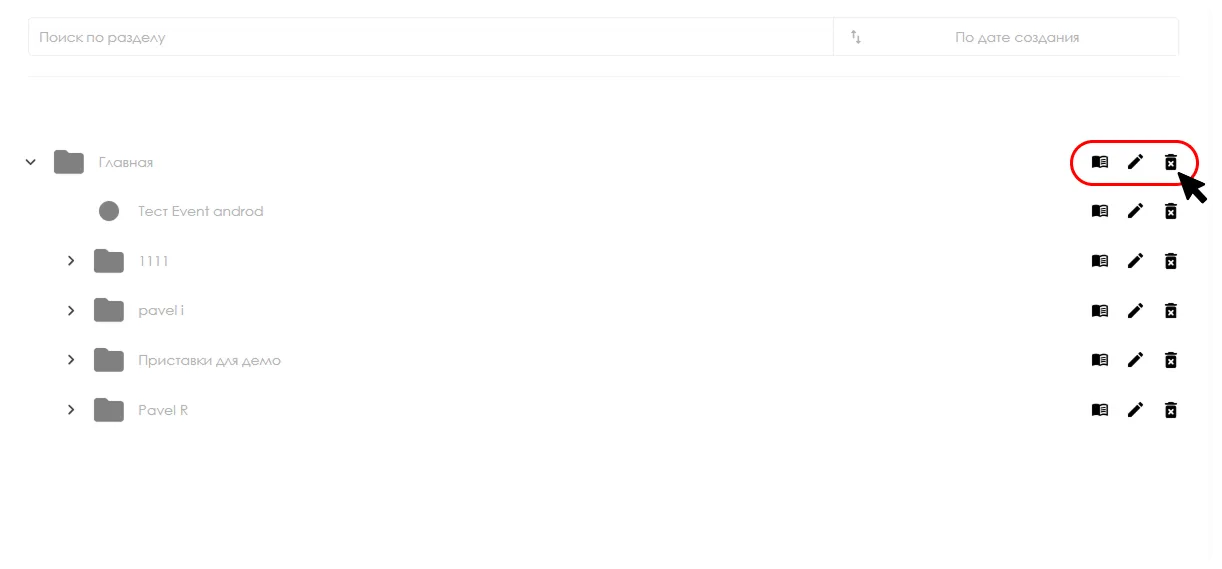
Fine-tune permissions per content folder
For the Content section, you can restrict access to specific folders and set the actions (view / edit / delete) on each one.
Save the role
The Create button in the top-right corner — the role appears in the list and becomes available when creating users.
Creating a user
Open “New user”
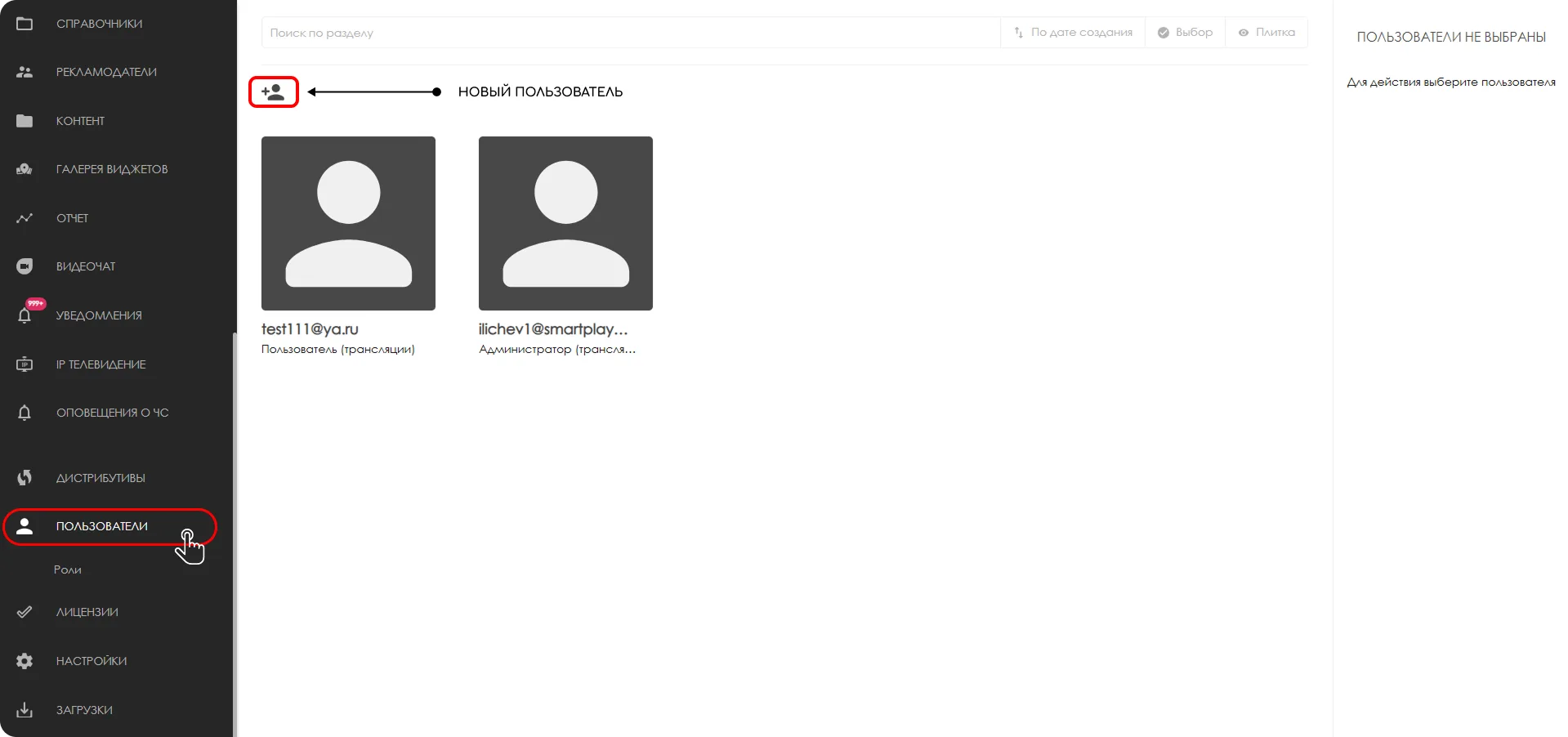
In Users, press the + icon in the top-left corner of the cards.
Fill in the card
In the side panel that appears, specify:
- User name — the display name
- Email — the email used to sign in
- Role — pick from the existing list or create a new one via the “+ Create role” link
- Password — type it in or press “Generate”
- Repeat password — confirmation
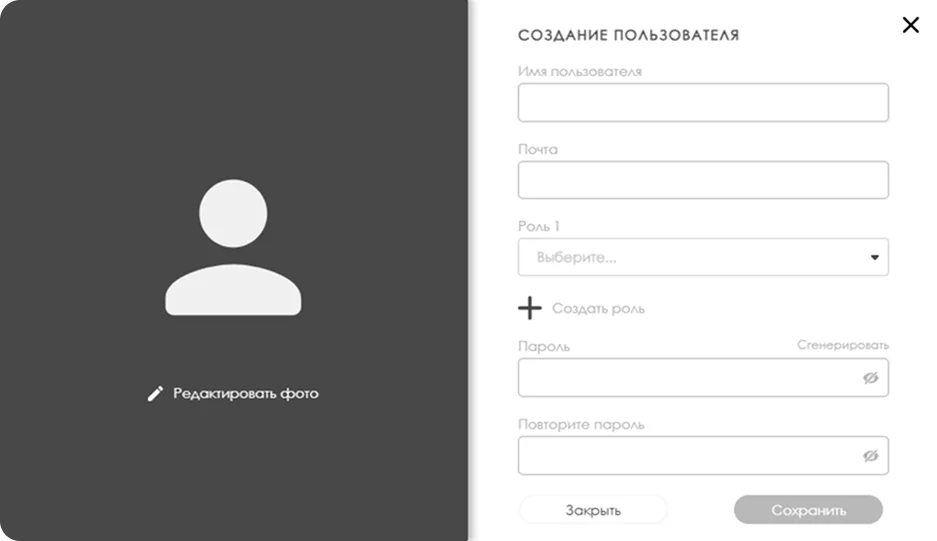
Save
The Save button activates once every required field is filled and the passwords match. After saving, the user can sign in to the dashboard with their credentials.
User groups
Use groups to manage access to content and devices:
- Assign users to a group
- A group can access only its own devices and its own content
- The super administrator sees all groups
A deleted user loses access immediately. Their schedules and content remain in the system.
Roles for content moderation
The Content moderation workflow uses Broadcast administrator and Broadcast user roles. The administrator approves or rejects files; the user can add only approved materials to a broadcast. The separate guide describes setup and review.
Sources: Модерация контента/ru.