Samsung Color E-Paper
Set up an electronic-ink panel for static content, taking sleep and screen refresh behaviour into account.
Before installation
Samsung Color E-Paper is an electronic-ink display for static information. Prepare an Android phone with the Samsung E-Paper app. Obtain the SmartPlayer installation URL and additional-settings password from SmartPlayer support.
Keep the mobile app open during setup and increase the phone screen-lock timeout: leaving the app or locking the phone may put the panel to sleep. The wiki suggests a 30-minute lock timeout. E-Ink feedback can take up to 15 seconds; wait for each action to finish.
Install SmartPlayer
- Register the panel in the Samsung E-Paper mobile app.
- Tap Devices 10 times, enter the password supplied by support and enable Custom App player in the additional settings.
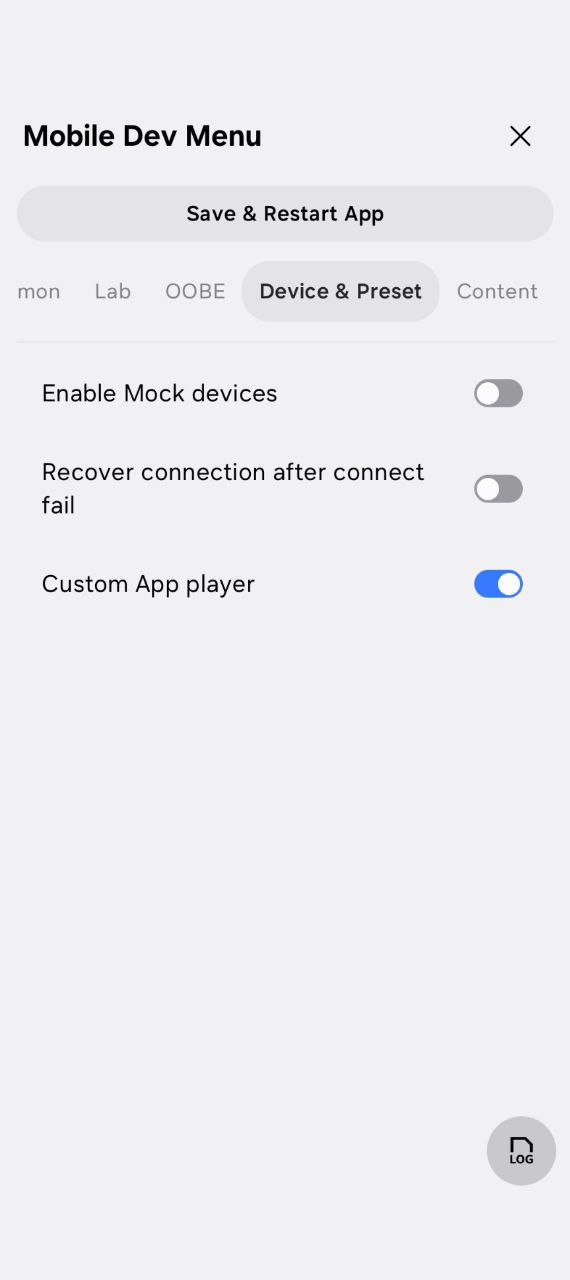
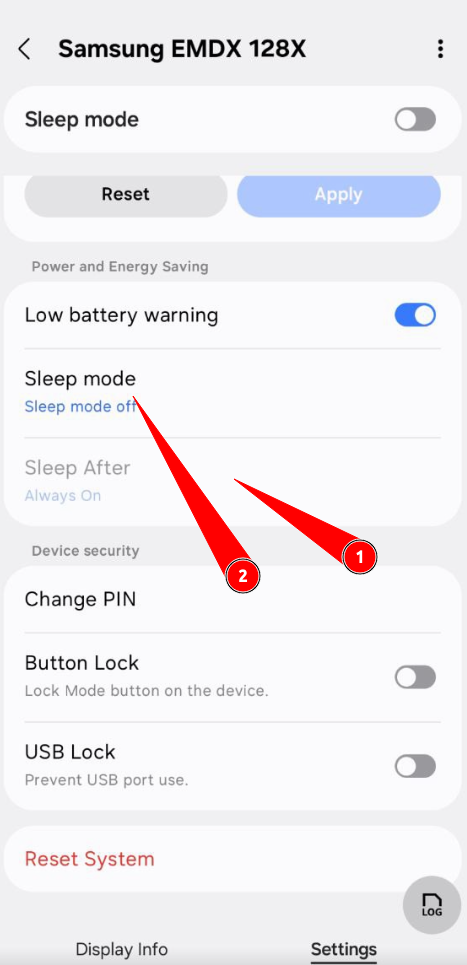
- Close the additional menu with the cross, select the panel and open Settings. Disable automatic Sleep Mode.
- Set Content source to Custom.
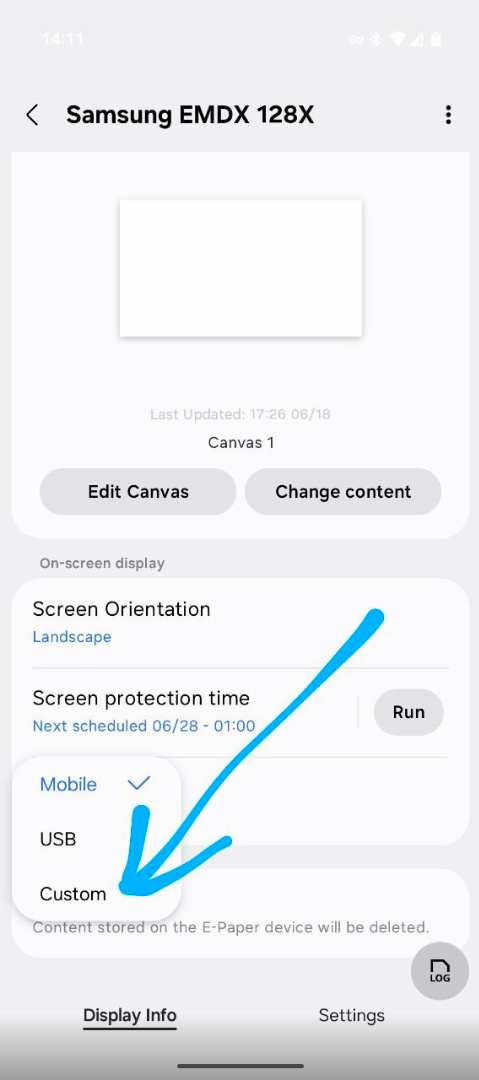
The source-selection screen warns that content stored on the panel will be deleted. Check that source files are available for republishing before switching.
- If Custom is unavailable, run the additional setup: Start setup → Accept terms → Manual setup → Content source: Custom → application URL → Next → PIN → Done. Labels can vary by mobile app language.
- Enter the SmartPlayer URL obtained from support and tap Install.
- Register the panel in the SmartPlayer account using the on-screen code.
- Set Screen Orientation to Landscape in the mobile app. SmartPlayer applies content orientation according to the account settings.
Content and refresh intervals
Use PNG, JPG/JPEG or static HTML/CSS pages without active animation. The application grid is 1920 × 1080 or 1080 × 1920; the wiki separately lists a physical resolution limit of 2560 × 1440. Continuous video and animated-panel scenarios do not carry over to E-Paper.
The wiki’s slideshow example uses a JPEG broadcast with consecutive images, no multiple zones, 60 seconds per image and an all-day schedule. Disable automatic sleep for that scenario.
The example uses 60 seconds per image, the general wiki recommendation is at least 40 seconds, and the Samsung recommendation quoted there is approximately 5 minutes between updates. Confirm the interval for your device and project: frequent updates can leave residual images. These values are separate guidance, not one universal limit.
Sleep, battery and time
| Situation | Consideration |
|---|---|
| Deep Sleep Mode | Networking is disabled; wake the panel with its physical power button, not remotely |
| Account shows 0% charge | Check whether the battery is installed correctly; the instruction states that it is supplied separately |
| Scheduled sleep does not occur | Update SmartPlayer to 2.3.1+ and provide access to the configured NTP time server |
| NTP settings change | Version 2.3.1 describes a one-time reboot after the change |
Version 2.3.1 fixes returning to sleep after a content update, the account sleep button, NTP and the Once reboot timer. See the changelog.
Reset and reinstall
For a hardware reset, the wiki describes holding PAIRING + MODE for 5 seconds, waiting approximately 10 seconds for the reset and pressing POWER to turn on the panel.
Before reinstalling through a USB preset on a previously used panel, the release instruction separately requires Device → System → Reset system in the Samsung E-Paper mobile app: a normal settings reset does not remove the installed application.
Use reset when reinstalling is necessary. Keep source content and connection settings available, and obtain the current installation URL from support.
Sources
Samsung Color E-Paper; Release 2.3.1; Troubleshooting