Interface Overview
After authentication, SmartPlayer opens the management console workspace. The interface has three main areas: the navigation sidebar, the working area, and the user panel.
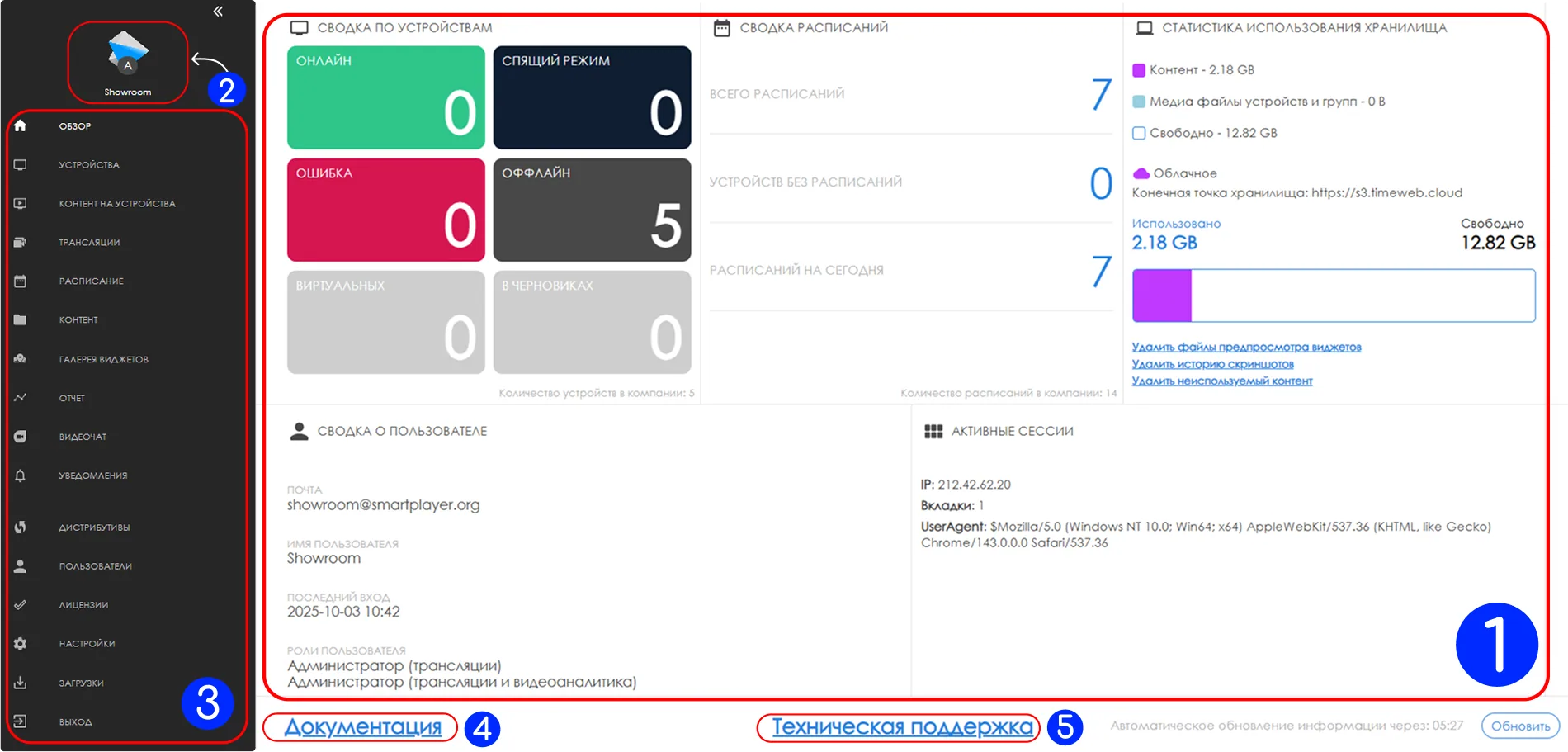
Interface structure
Left navigation sidebar
Overview, Devices, Content, Broadcasts, Schedule, Reports, Settings - switch between platform sections
Workspace
Content of the selected section: tables, editors, and cards. Supports search, filtering, and sorting
Left navigation sections
| Section | Purpose |
|---|---|
| Overview | Dashboard with key network metrics |
| Devices | Screen management: add, configure, and monitor devices |
| Content | Media library for uploading and organizing files |
| Broadcasts | Create and edit playback programs |
| Schedule | Assign broadcasts to devices with time windows |
| Reports | Playback and online-time statistics |
| Administration | Users, roles, audit, and account settings |
| Distributions | Client software installation packages for all platforms |
Overview section
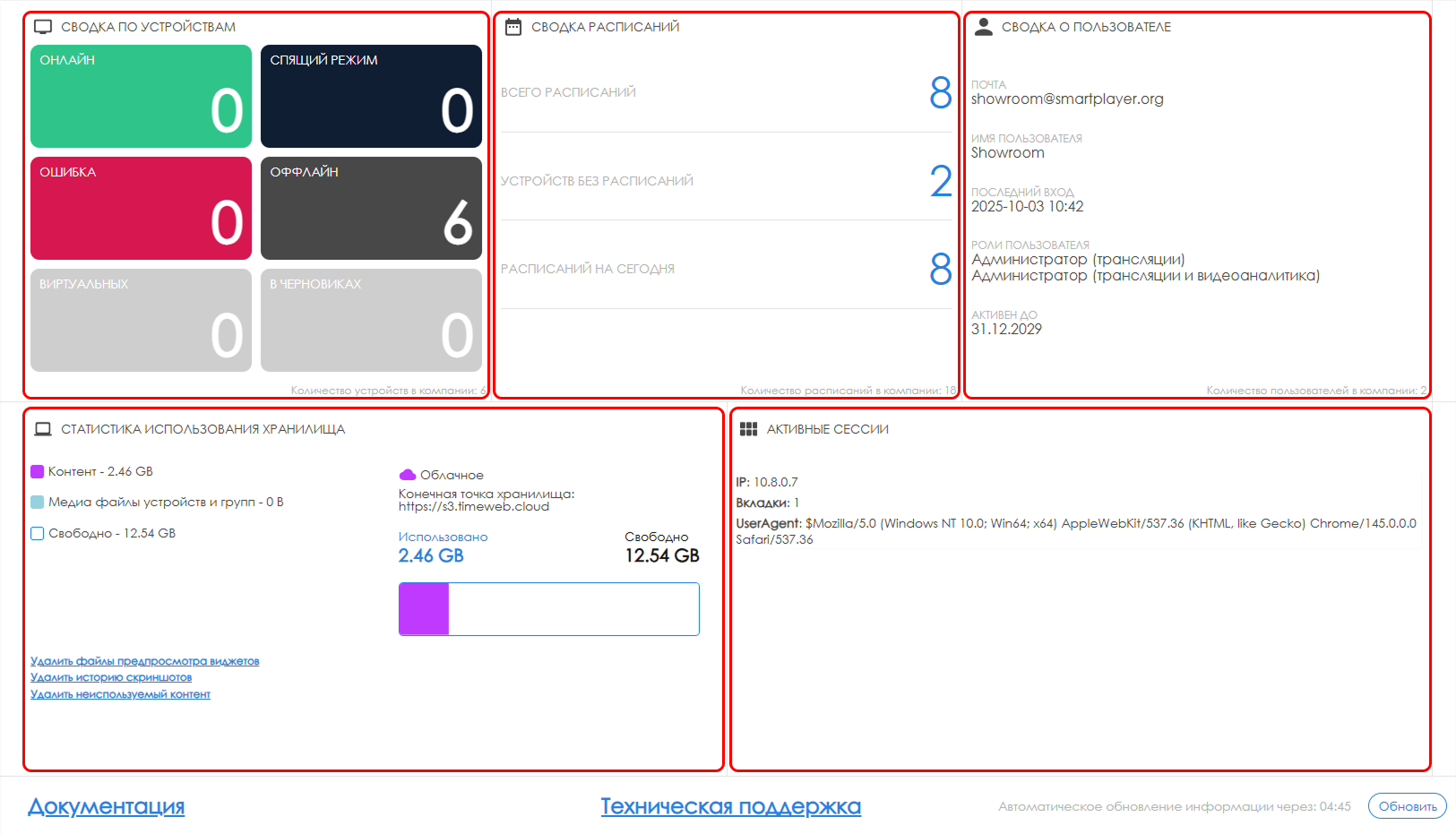
The first screen after sign-in is the dashboard with key indicators:
- Active broadcasts — what is currently playing on the network
- Storage usage — percentage of occupied disk space
- Active user sessions — who is currently working in the system
- Summary statistics — online, offline, and errors across all devices
User menu
Click the avatar in the upper-right corner:
- Profile — name, email, and current role
- Account settings — password and interface language
- Documentation link — open the user guide
- Sign out — end the current session
Section toolbars
Most sections support standard operations:
Search
Quickly search by name, tag, or object identifier
Filters
Filter by group, status, creation date, or object type
Multi-select
Select several objects for bulk actions: delete, assign, or export
Context menu
The three-dot button next to an object opens edit, duplicate, delete, and additional actions
Users only see the sections that their administrator has allowed. Learn more in Users and roles.