Add a Device
Before adding a device
- Install the SmartPlayer distribution on the device (the
Distributionssection in the management console). - Launch the application and wait until the 9-digit registration code appears on the device screen.
- Make sure the device has access to the internet or the corporate network.
Step-by-step process
1
Open the Devices section
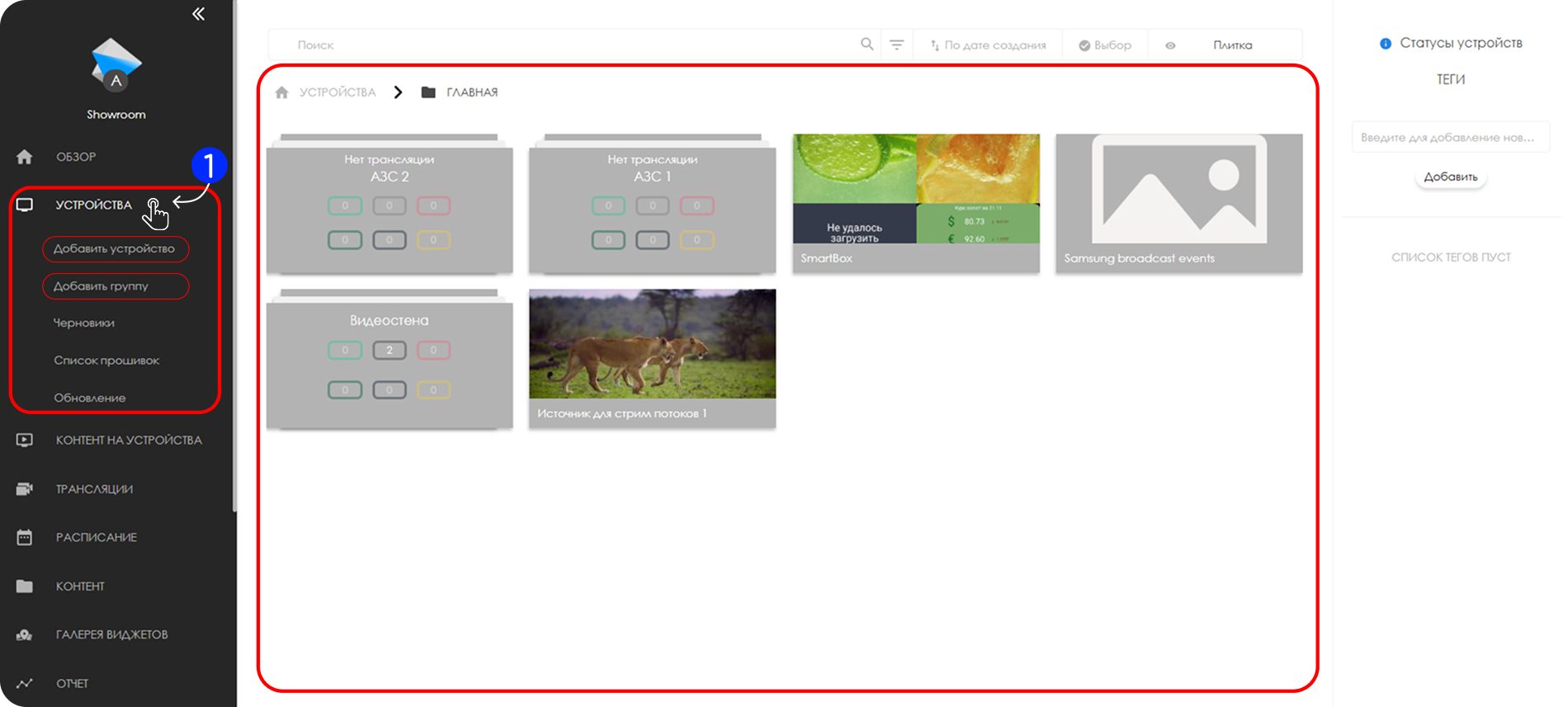
~1 minIn the left navigation sidebar, select Devices → Add device.
2
Enter the registration code
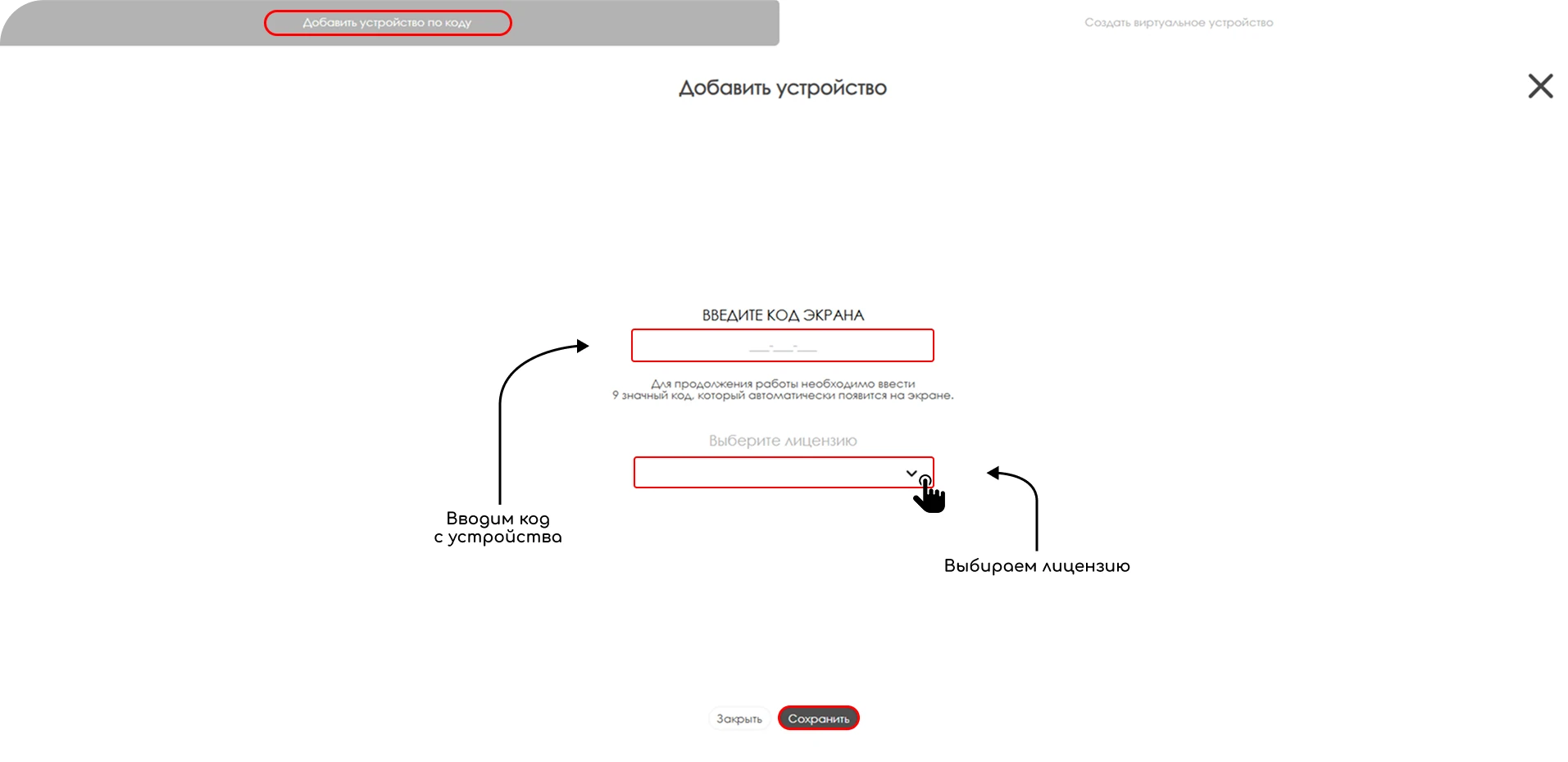
~30 secIn the dialog, enter the 9-digit code displayed on the device screen and click Save.
3
Fill in the device card
~2 minOn the "Additional device parameters" page, specify:
- Name — a clear name for navigation
- Installation address — physical location
- Time zone — important for scheduling
- Screen orientation — landscape or portrait
- Tags — for filtering and grouping
- Group — the device group
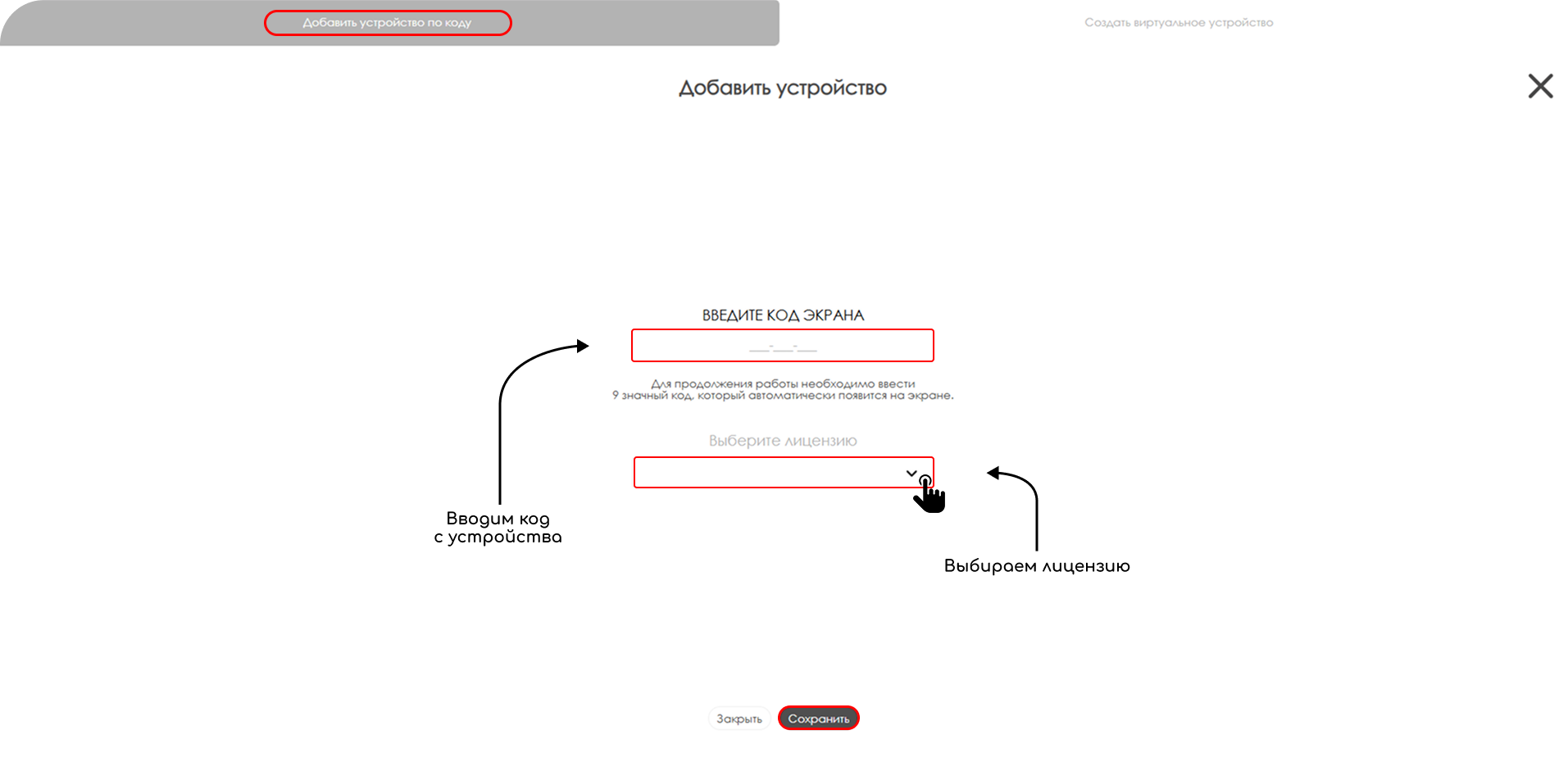
Click Save. The device appears in the list.
After adding
The device appears in the Devices section with one of these statuses:
- Online — connected and working
- Offline — no connection to the server
- Error — application or device failure
Device does not appear?
Check the network connection, make sure the application is running and has not been closed, and verify the device time zone.
Next
Licenses