Licenses
Before you start, make sure licenses are available in the management console. The Licenses section is available in the left sidebar.
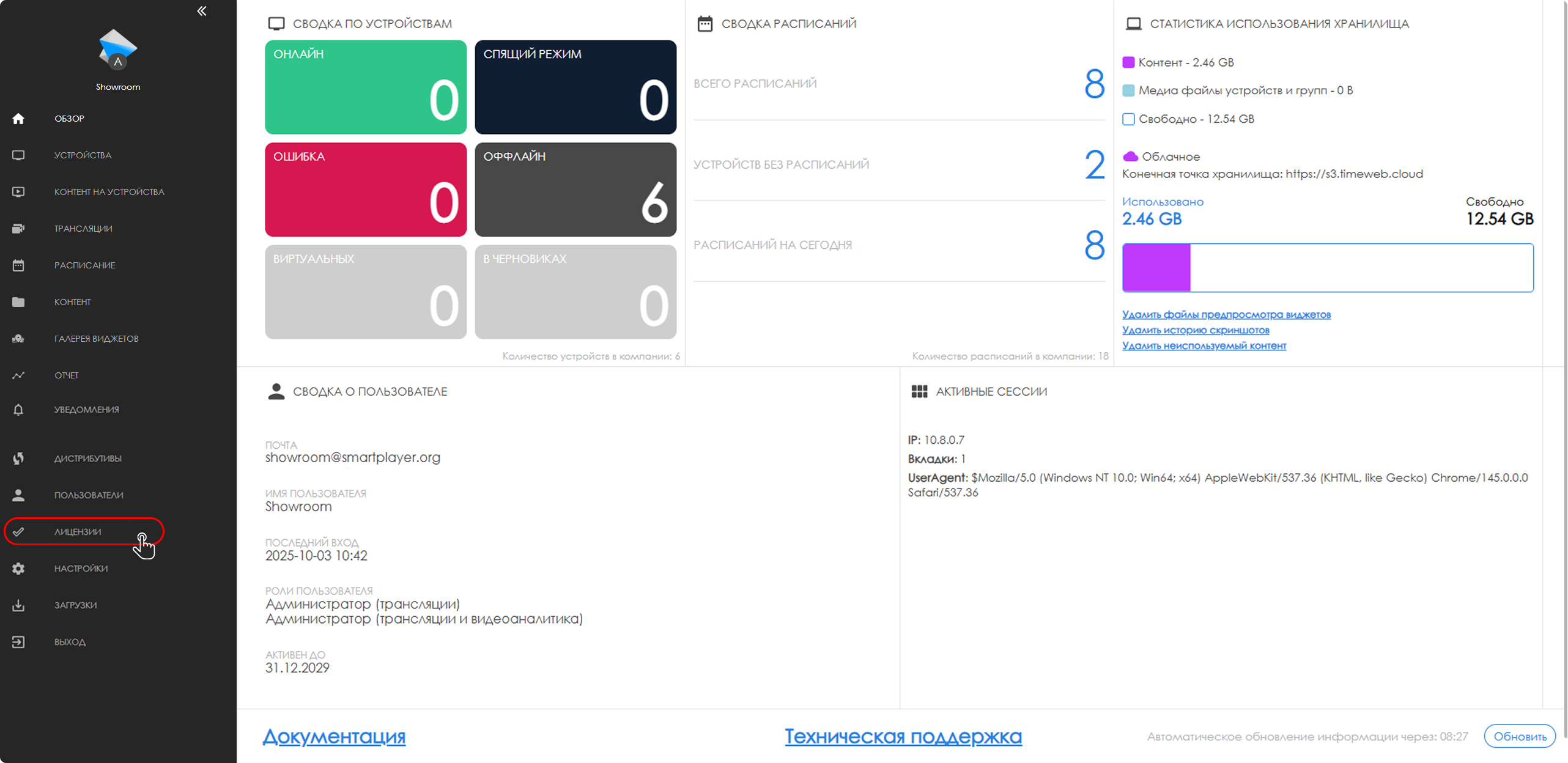
What the section shows
- Number and types of available licenses
- Number of devices already assigned to licenses
- License expiration dates
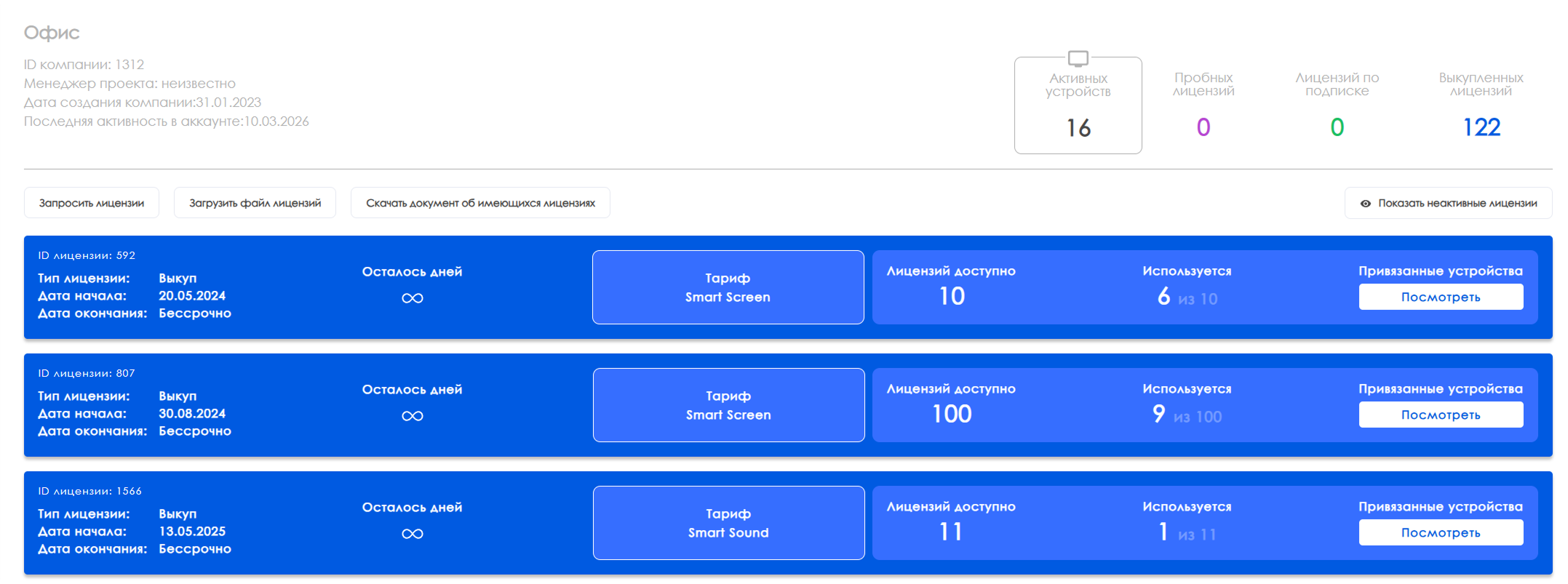
License shipment for local server
For local servers, licenses are shipped through a request file.
1
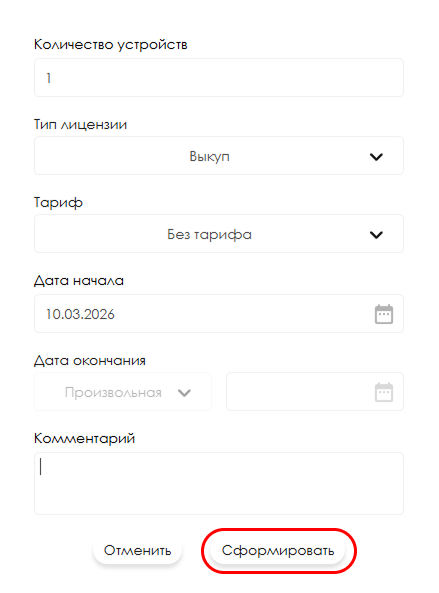
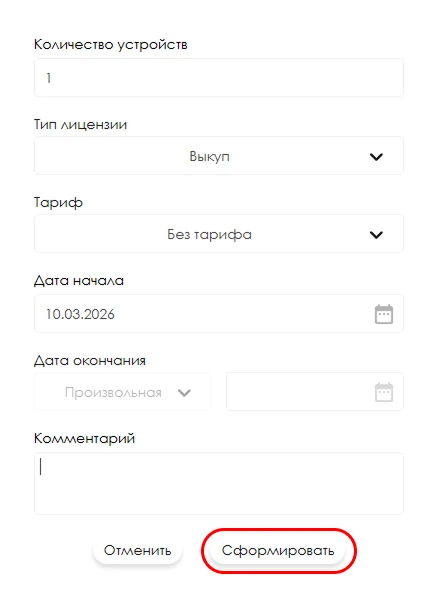
Generate a request
In the dialog, specify:
- Number of licenses
- License type
- Plan
- Start date
Click Generate. A TXT request file is downloaded.
2
Send the file to your manager
Send the generated TXT request file to your SmartPlayer manager.
3
Upload the license file
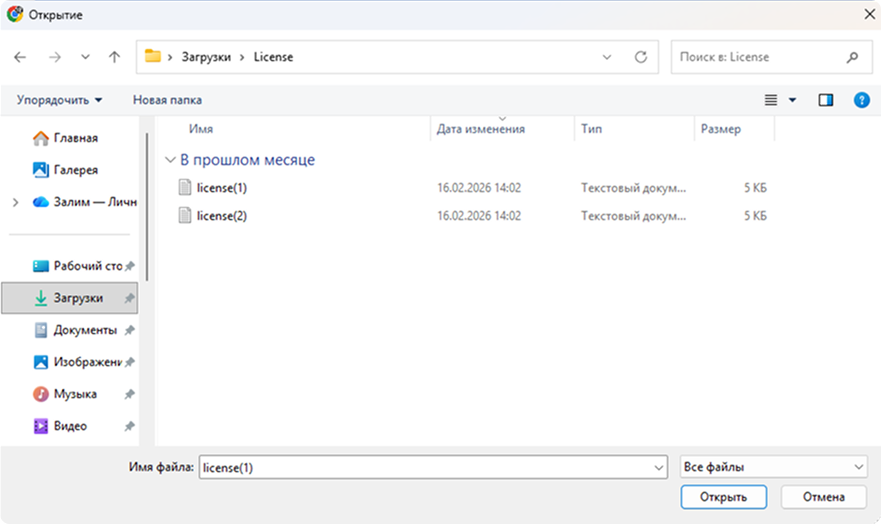
After receiving the license file from your manager, upload it to the system through Licenses → Upload file.
License setup
Request additional licenses
To increase the number of licenses, contact your SmartPlayer manager. Current usage is always visible in the Licenses section.
Next
Device settings