Editing a schedule
A schedule can be edited at any time — changes sync to every assigned device automatically within 1–2 minutes.
Step 1. Find the schedule
Go to Schedule. Use search or the filters:
- By schedule name
- By broadcast — which program is assigned
- By device group
- By status — active / finished / upcoming
Step 2. Open the editor
Click the schedule's name or pick Edit from the context menu (⋯ next to the entry). The same form opens as when creating an assignment.
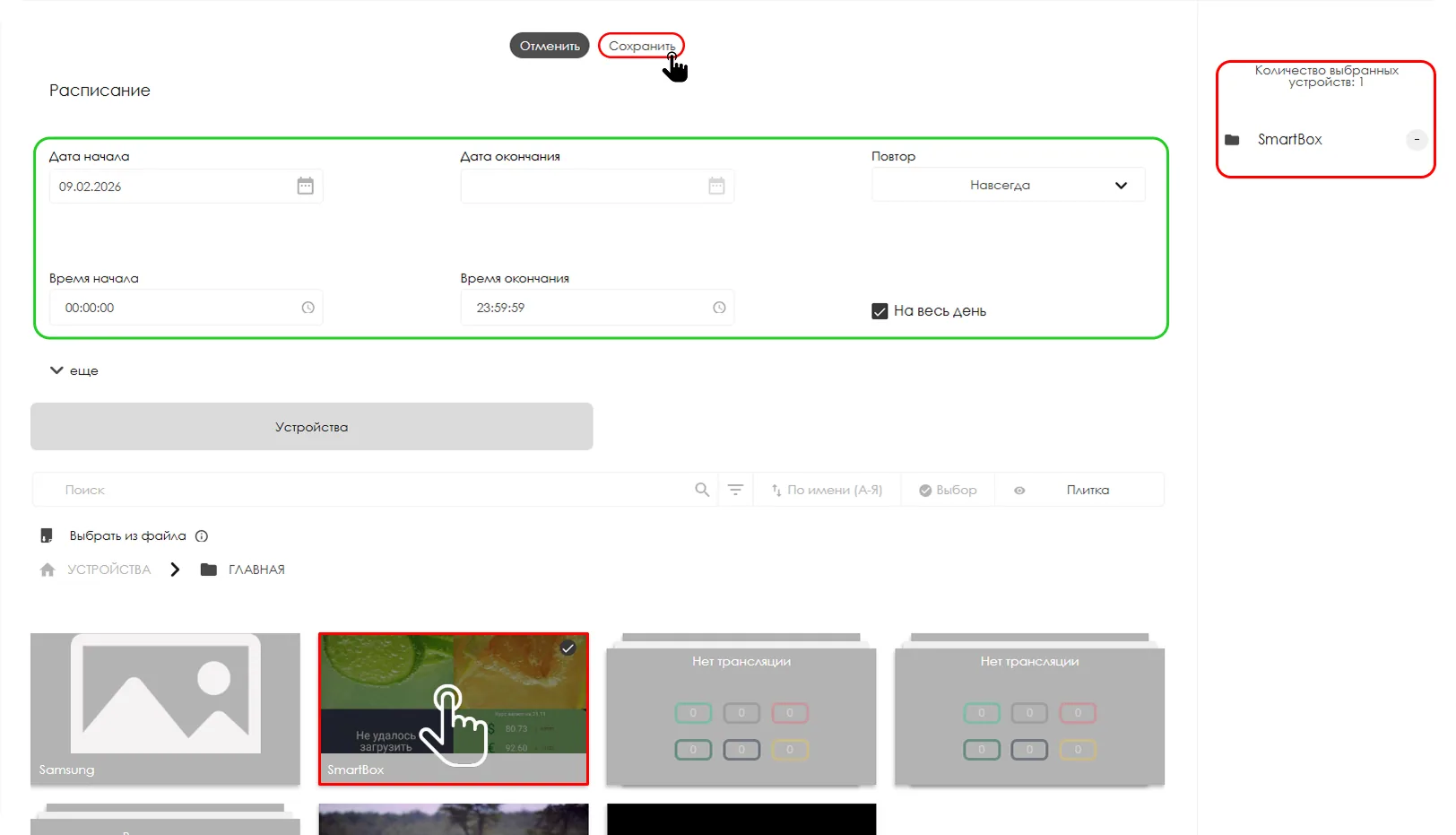
Step 3. Make your changes
Every schedule parameter is editable:
| Parameter | What can change |
|---|---|
| Validity period | Start date, end date, or “Forever” |
| Time window | Start and end times (or “All day”) |
| Repeat | Daily, weekdays, selected days of the week |
| Devices and groups | Add new ones or remove what's no longer needed |
| Broadcast priority | Change how publications override each other |
| Time settings | Device time or the server's local time |
| Deferred download | Move heavy file transfers to off-hours |
Step 4. Save
Press Save. The changes reach the devices on the next sync — usually within 1–2 minutes. “Cancel” closes the form without writing anything.
Bulk schedule operations
In the Schedule section, select several entries (multi-select) for group actions:
Duplicate
Create an exact copy of a schedule — handy for similar scenarios across locations
Delete
Remove one or more schedules. Devices fall back to the next schedule by priority
Export to CSV
Download the schedule list with parameters for analysis or hand-off to colleagues
Pause
Temporarily deactivate a schedule without deleting it — resume whenever needed
Changing a schedule from the device
An alternative path — edit the schedule right from the device card:
Devices → device card → Schedule tab
It lists every assigned schedule with time frames and priorities. Add a new one or open an existing one for editing.
When an active schedule is deleted, devices immediately switch to the next schedule by priority. If none remain, the screen shows the default splash (or a black background).
Every schedule change is recorded in the Audit log with the user and timestamp.