Assigning a schedule
A schedule defines when and on which devices a broadcast plays. You can assign one from the broadcast card or from the Schedule section.
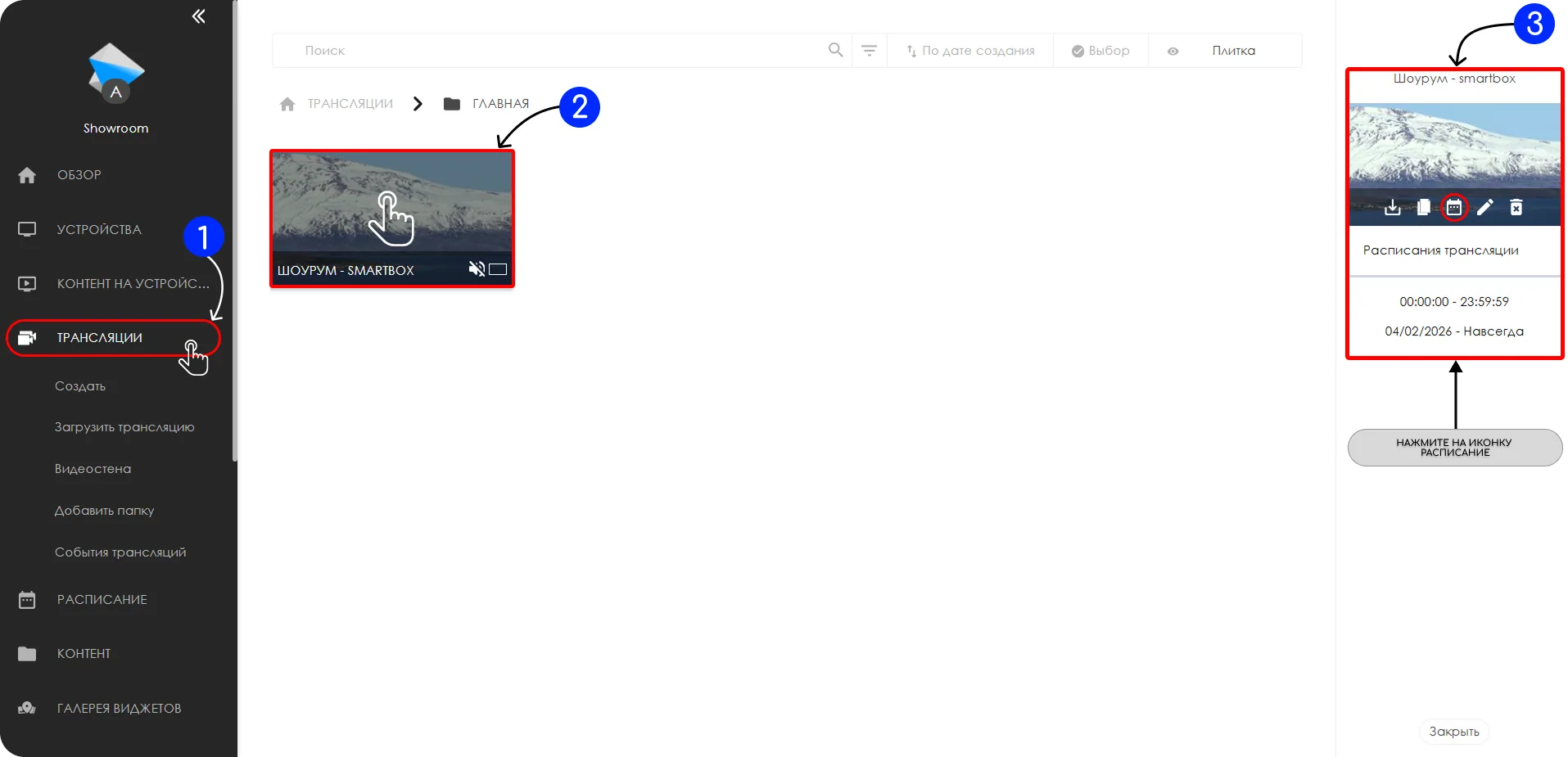
Step 1. Open the broadcast card
Go to Broadcasts and open the card you need. The right-hand panel shows the “Broadcast schedule” block, with the button for adding a new assignment.
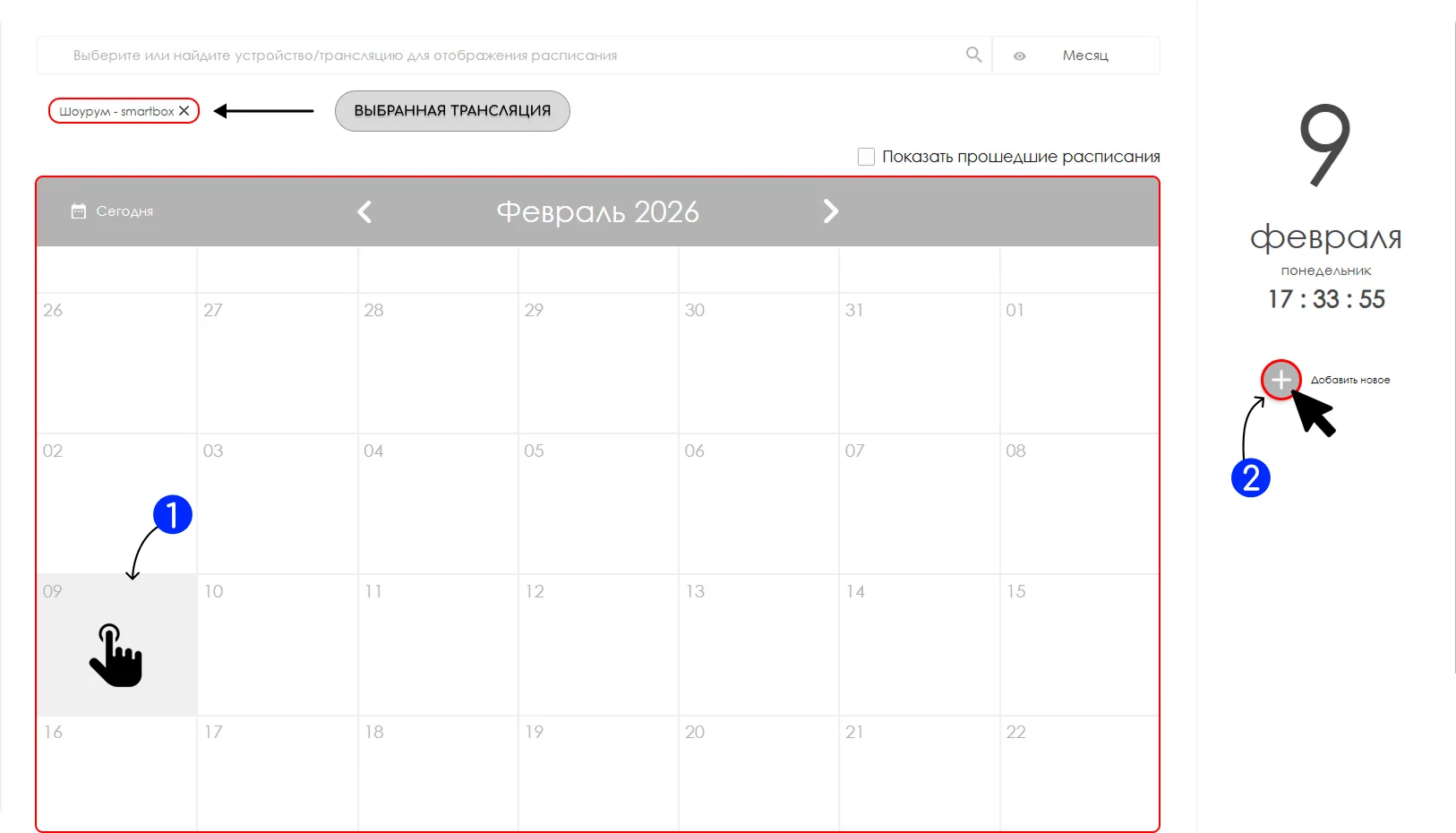
Step 2. Pick a day in the calendar
Click the start day in the calendar. The calendar supports month view and a “Today” jump. Then press “➕ Add new” in the right panel.
Step 3. Set the display parameters
In the form, specify:
- Start and end dates — or switch on “Forever”
- Start and end times — or tick “All day”
- Repeat — display frequency (daily, weekdays, specific days, etc.)
- Devices or groups — the resulting list shows on the right
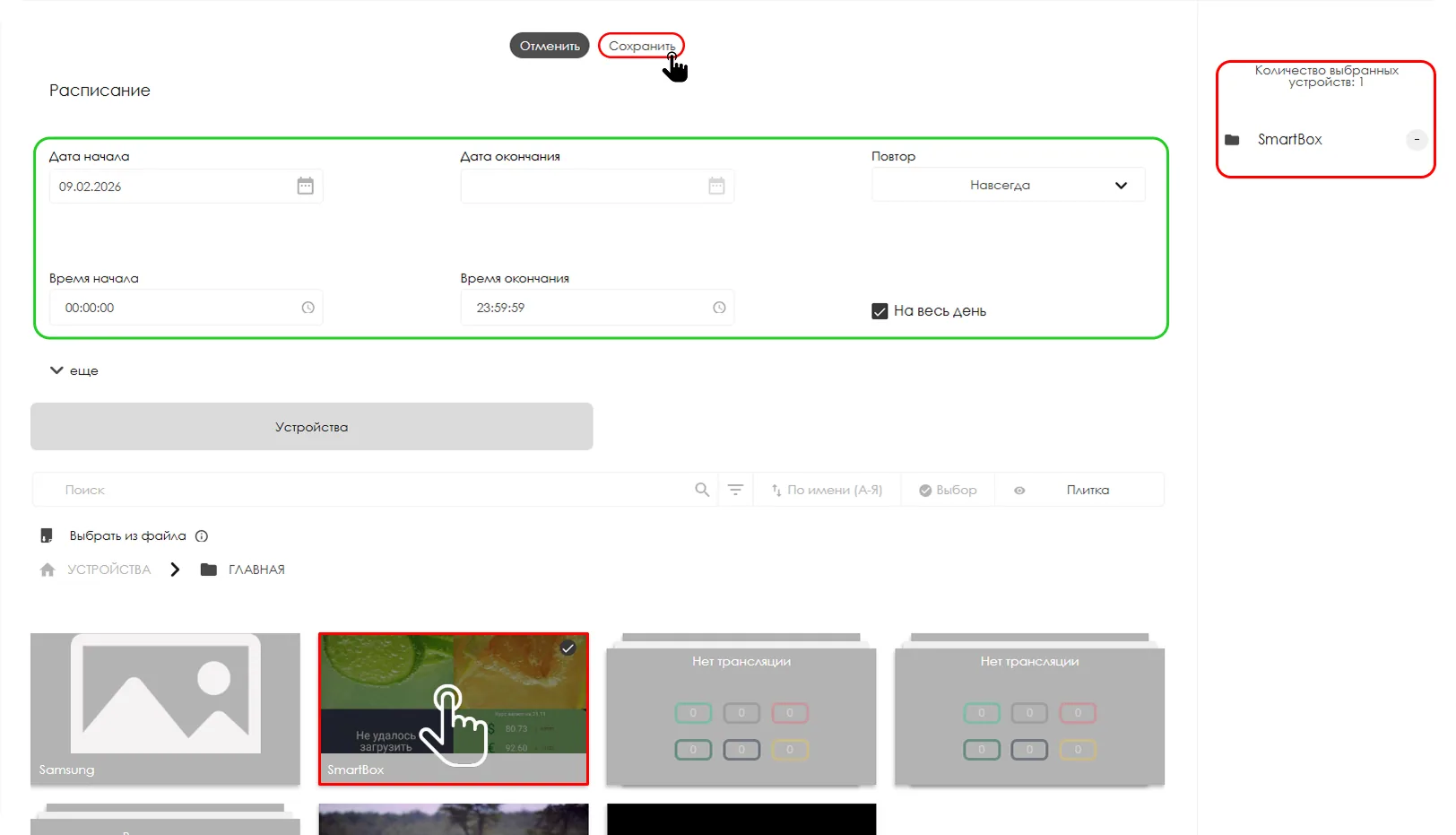
Step 4. Save
Press Save. SmartPlayer then delivers the content to the selected devices automatically — progress shows in Downloads.
Schedule priority
If a device carries several schedules, priority rules apply. See Schedule priority.
Next
Editing a schedule